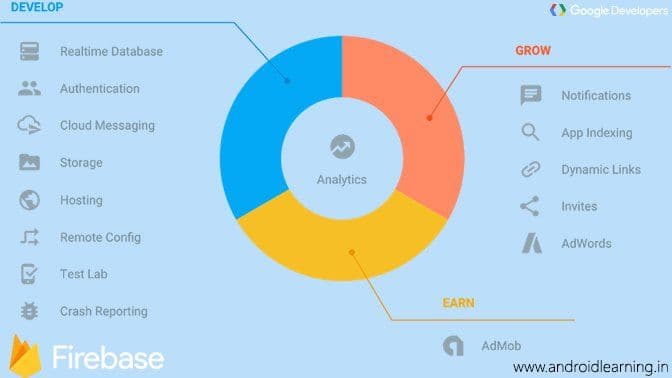
Firebase gives you the tools to develop high-quality apps, grow your user base, and earn more money. We cover the essentials so you can monetize your business and focus on your users.
Prerequisites
A device running Android 2.3 (Gingerbread) or newer, and Google Play services 9.0.0 or newer
If you don't have an Android Studio project already, you can download one of our quickstart samples if you just want to try a Firebase feature. If you're using a quickstart, remember to get the package name from the ApplicationManifest.xml, you'll need it for the next step.
to get started.
Add Firebase to your app
It's time to add Firebase to your app. To do this you'll need a Firebase project and a Firebase configuration file for your app.
Create a Firebase project in the Firebase console, if you don't already have one. If you already have an existing Google project associated with your mobile app, click Import Google Project. Otherwise, clickCreate New Project.
Click Add Firebase to your Android app and follow the setup steps. If you're importing an existing Google project, this may happen automatically and you can just download the config file.
When prompted, enter your app's package name. It's important to enter the package name your app is using; this can only be set when you add an app to your Firebase project.
At the end, you'll download a google-services.json file. You can download this file again at any time.
If you haven't done so already, copy this into your project's module folder, typically app/.
Add the SDK
If you would like to integrate the Firebase libraries into one of your own projects, you need to perform a few basic tasks to prepare your Android Studio project. You may have already done this as part of adding Firebase to your app.
First, add rules to your root-level build.gradle file, to include the google-services plugin:
Then, in your module Gradle file (usually the app/build.gradle) file, add the apply plugin line at the bottom of the file to enable the Gradle plugin:
apply plugin: 'com.android.application'
android {
  // ...
}
dependencies {
  // ...
  compile 'com.google.firebase:firebase-core:10.2.1'
  // Getting a "Could not find" error? Make sure you have
  // the latest Google Repository in the Android SDK manager
}
// ADD THIS AT THE BOTTOM
apply plugin: 'com.google.gms.google-services'
You should also add the dependencies for the Firebase SDKs you wish to use - we recommend starting with thefirebase-core, which include Firebase Analytics, but see below for the full list.
Available libraries
These libraries are available for the different Firebase features.