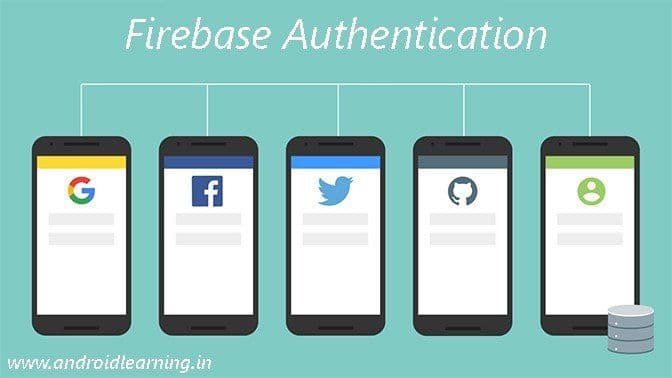
In this Tutorial, we will see how we can make User Login and Registration in Android by using Firebase. Firebase Authentication provides backend services, easy-to-use SDKs, and ready-made UI libraries to authenticate users to your app. It supports authentication using passwords, popular federated identity providers like Google, Facebook and Twitter, and more.
Before you begin
- Add Firebase to your Android project.
- Add the dependency for Firebase Authentication to your app-level
build.gradlefile:compile 'com.google.firebase:firebase-auth:9.6.1' - If you haven't yet connected your app to your Firebase project, do so from the Firebase console.
- Enable Email/Password sign-in:
- In the Firebase console, open the Auth section.
- On the Sign in method tab, enable the Email/password sign-in method and click Save.

Creating Android Project
- Create a new project in Android Studio from File ⇒ New Project. When it prompts you to select the default activity, select Blank Activity and proceed.While filling the project details, use the same package name which you gave in firebase console. In my case I am using same org.snowcorp.firebase.auth
- Open AndroidManifest.xml and add the INTERNET permission as we need to make network calls.
<uses-permission android:name="android.permission.INTERNET" /> - Paste the google-services.json file to your project’s app folder. This step is very important as your project won’t build without this file.
- Now open the
build.gradlelocated in project’s home directory and add firebase dependency.dependencies { classpath 'com.android.tools.build:gradle:2.2.1' classpath 'com.google.gms:google-services:3.0.0' // NOTE: Do not place your application dependencies here; they belong // in the individual module build.gradle files } - Add the dependency for Firebase Authentication to your app-level
build.gradlefile:compile 'com.google.firebase:firebase-auth:9.6.1' - Open app/build.gradle and add firebase auth dependency. At the very bottom of the file, add apply plugin: ‘com.google.gms.google-services’
dependencies { compile fileTree(dir: 'libs', include: ['*.jar']) // .... compile 'com.android.support:appcompat-v7:24.2.1' compile 'com.android.support:design:24.2.1' compile 'com.google.firebase:firebase-auth:9.6.1' } apply plugin: 'com.google.gms.google-services' - Add the below resources to colors.xml and strings.xml. These resources doesn’t require for firebase, but for this article.
colors.xml
<?xml version="1.0" encoding="utf-8"?>
<resources>
    <color name="colorPrimary">#2196F3</color>
    <color name="colorPrimaryDark">#2196F3</color>
    <color name="colorAccent">#03A9F4</color>
    <color name="white">#ffffff</color>
    <color name="lbl_email">#333333</color>
    <color name="input_login">#222222</color>
    <color name="input_register">#222222</color>
    <color name="input_login_hint">#999999</color>
    <color name="input_register_hint">#999999</color>
    <color name="btn_login_register">#2196F3</color>
    <color name="btn_register">#0D47A1</color>
    <color name="btn_logut">#ff6861</color>
</resources>
strings.xml <?xml version="1.0" encoding="utf-8"?> <resources> <string name="app_name">Firebase Auth</string> <string name="action_sign_in_short">Register</string> <string name="email">Email</string> <string name="minimum_password">Password too short, enter minimum 6 characters!</string> <string name="auth_failed">Authentication failed, check your email and password or sign up</string> <string name="title_activity_login">Sign in</string> <string name="hint_email">Email</string> <string name="hint_password">Password</string> <string name="btn_login">LOGIN</string> <string name="btn_link_to_register">Don't have an account? Sing up</string> <string name="btn_link_to_login">already registered. login me!</string> <string name="btn_forgot_password">Forgot your password?</string> <string name="btn_reset_password">Reset Password</string> <string name="btn_back"><![CDATA[<< Back]]></string> <string name="btn_sign_out">Sign Out</string> <string name="lbl_forgot_password">Forgot password?</string> <string name="forgot_password_msg">We just need your registered Email Id to sent you password reset instructions.</string> </resources>Sign Up
Sign up screen contains two EditText fields for email and password. And few buttons to navigate to login and forgot password screens.
- Create an activity named SignupActivity.java and add the following code to the layout file activity_signup.xml
<?xml version="1.0" encoding="utf-8"?> <android.support.design.widget.CoordinatorLayout xmlns:android="http://schemas.android.com/apk/res/android" xmlns:tools="http://schemas.android.com/tools" xmlns:app="http://schemas.android.com/apk/res-auto" android:layout_width="match_parent" android:layout_height="match_parent" android:fitsSystemWindows="true" tools:context=".SignupActivity"> <android.support.design.widget.AppBarLayout android:id="@+id/appbar" android:layout_width="match_parent" android:layout_height="wrap_content" android:theme="@style/ThemeOverlay.AppCompat.Dark.ActionBar"> <include layout="@layout/toolbar" /> </android.support.design.widget.AppBarLayout> <LinearLayout app:layout_behavior="@string/appbar_scrolling_view_behavior" android:layout_width="fill_parent" android:layout_height="fill_parent" android:gravity="center" android:orientation="vertical" android:padding="@dimen/activity_horizontal_margin"> <TextView android:layout_width="match_parent" android:layout_height="wrap_content" android:gravity="center" android:layout_marginBottom="30dp" android:text="Sign up" android:textSize="25sp"/> <android.support.design.widget.TextInputLayout android:layout_width="match_parent" android:layout_height="wrap_content"> <EditText android:id="@+id/email" android:layout_width="match_parent" android:layout_height="wrap_content" android:hint="@string/email" android:inputType="textEmailAddress" android:imeOptions="actionNext" android:maxLines="1" android:textColor="@color/input_register" /> </android.support.design.widget.TextInputLayout> <android.support.design.widget.TextInputLayout android:layout_width="match_parent" android:layout_height="wrap_content"> <EditText android:id="@+id/password" android:layout_width="match_parent" android:layout_height="wrap_content" android:focusableInTouchMode="true" android:hint="@string/hint_password" android:imeOptions="actionUnspecified" android:inputType="textPassword" android:maxLines="1" android:textColor="@color/input_register" /> </android.support.design.widget.TextInputLayout> <!-- Sign up Button --> <Button android:id="@+id/sign_up_button" style="?android:textAppearanceSmall" android:layout_width="match_parent" android:layout_height="wrap_content" android:layout_marginTop="16dp" android:background="@color/btn_login_register" android:text="@string/action_sign_in_short" android:textColor="@color/white" android:textStyle="bold" /> <Button android:id="@+id/btn_reset_password" android:layout_width="fill_parent" android:layout_height="wrap_content" android:layout_marginTop="20dip" android:background="@null" android:text="@string/btn_forgot_password" android:textAllCaps="false" android:textColor="@color/btn_login_register" /> <!-- Link to Login Screen --> <Button android:id="@+id/sign_in_button" android:layout_width="fill_parent" android:layout_height="wrap_content" android:layout_marginTop="10dip" android:background="@null" android:text="@string/btn_link_to_login" android:textAllCaps="false" android:textColor="@color/btn_register" android:textSize="15sp" /> </LinearLayout> <ProgressBar android:id="@+id/progressBar" android:layout_width="30dp" android:layout_height="30dp" android:layout_gravity="center|bottom" android:layout_marginBottom="10dp" android:visibility="gone" /> </android.support.design.widget.CoordinatorLayout> - Open SignupActivity.java and add the following. Firebase provides createUserWithEmailAndPassword()method to create a new user with email and password data.
If you login to Firebase console, you can see the user created with the email id you have given the android app.package org.snowcorp.firebase.auth; import android.content.Intent; import android.os.Bundle; import android.support.annotation.NonNull; import android.support.v7.app.AppCompatActivity; import android.support.v7.widget.Toolbar; import android.text.TextUtils; import android.view.View; import android.widget.Button; import android.widget.EditText; import android.widget.ProgressBar; import android.widget.Toast; import com.google.android.gms.tasks.OnCompleteListener; import com.google.android.gms.tasks.Task; import com.google.firebase.auth.AuthResult; import com.google.firebase.auth.FirebaseAuth; /** * Created by Akshay Raj on 10/17/2016. * Snow Corporation Inc. * www.snowcorp.org */ public class SignupActivity extends AppCompatActivity { private EditText inputEmail, inputPassword; private Button btnSignIn, btnSignUp, btnResetPassword; private ProgressBar progressBar; private FirebaseAuth auth; @Override protected void onCreate(Bundle savedInstanceState) { super.onCreate(savedInstanceState); setContentView(R.layout.activity_signup); Toolbar toolbar = (Toolbar) findViewById(R.id.toolbar); setSupportActionBar(toolbar); getSupportActionBar().setDisplayHomeAsUpEnabled(true); //Get Firebase auth instance auth = FirebaseAuth.getInstance(); btnSignIn = (Button) findViewById(R.id.sign_in_button); btnSignUp = (Button) findViewById(R.id.sign_up_button); inputEmail = (EditText) findViewById(R.id.email); inputPassword = (EditText) findViewById(R.id.password); progressBar = (ProgressBar) findViewById(R.id.progressBar); btnResetPassword = (Button) findViewById(R.id.btn_reset_password); btnResetPassword.setOnClickListener(new View.OnClickListener() { @Override public void onClick(View v) { resetPassword(); //startActivity(new Intent(SignupActivity.this, ResetPasswordActivity.class)); } }); btnSignIn.setOnClickListener(new View.OnClickListener() { @Override public void onClick(View v) { finish(); } }); btnSignUp.setOnClickListener(new View.OnClickListener() { @Override public void onClick(View v) { String email = inputEmail.getText().toString().trim(); String password = inputPassword.getText().toString().trim(); if (TextUtils.isEmpty(email)) { Toast.makeText(getApplicationContext(), "Enter email address!", Toast.LENGTH_SHORT).show(); return; } if (TextUtils.isEmpty(password)) { Toast.makeText(getApplicationContext(), "Enter password!", Toast.LENGTH_SHORT).show(); return; } if (password.length() < 6) { Toast.makeText(getApplicationContext(), "Password too short, enter minimum 6 characters!", Toast.LENGTH_SHORT).show(); return; } progressBar.setVisibility(View.VISIBLE); //create user auth.createUserWithEmailAndPassword(email, password) .addOnCompleteListener(SignupActivity.this, new OnCompleteListener<AuthResult>() { @Override public void onComplete(@NonNull Task<AuthResult> task) { Toast.makeText(SignupActivity.this, "createUserWithEmail:onComplete:" + task.isSuccessful(), Toast.LENGTH_SHORT).show(); progressBar.setVisibility(View.GONE); // If sign in fails, display a message to the user. If sign in succeeds // the auth state listener will be notified and logic to handle the // signed in user can be handled in the listener. if (!task.isSuccessful()) { Toast.makeText(SignupActivity.this, "Authentication failed." + task.getException(), Toast.LENGTH_SHORT).show(); } else { startActivity(new Intent(SignupActivity.this, MainActivity.class)); finish(); } } }); } }); } @Override protected void onResume() { super.onResume(); progressBar.setVisibility(View.GONE); } }
Log In
Now we’ll add the login screen and check the credentials we have created on sign up screen.
- Create another activity named LoginActivity.java and add the below code to its layout file activity_login.xml.
<?xml version="1.0" encoding="utf-8"?> <android.support.design.widget.CoordinatorLayout xmlns:android="http://schemas.android.com/apk/res/android" xmlns:tools="http://schemas.android.com/tools" xmlns:app="http://schemas.android.com/apk/res-auto" android:layout_width="match_parent" android:layout_height="match_parent" android:fitsSystemWindows="true" tools:context=".LoginActivity"> <android.support.design.widget.AppBarLayout android:id="@+id/appbar" android:layout_width="match_parent" android:layout_height="wrap_content" android:theme="@style/ThemeOverlay.AppCompat.Dark.ActionBar"> <include layout="@layout/toolbar" /> </android.support.design.widget.AppBarLayout> <LinearLayout app:layout_behavior="@string/appbar_scrolling_view_behavior" android:layout_width="fill_parent" android:layout_height="fill_parent" android:gravity="center" android:orientation="vertical" android:padding="@dimen/activity_horizontal_margin"> <TextView android:layout_width="match_parent" android:layout_height="wrap_content" android:gravity="center" android:layout_marginBottom="30dp" android:text="Login" android:textSize="25sp"/> <android.support.design.widget.TextInputLayout android:layout_width="match_parent" android:layout_height="wrap_content"> <EditText android:id="@+id/email" android:layout_width="match_parent" android:layout_height="wrap_content" android:layout_marginBottom="10dp" android:hint="@string/hint_email" android:inputType="textEmailAddress" android:imeOptions="actionNext" android:textColor="@color/input_login" android:textColorHint="@color/input_login_hint" /> </android.support.design.widget.TextInputLayout> <android.support.design.widget.TextInputLayout android:layout_width="match_parent" android:layout_height="wrap_content"> <EditText android:id="@+id/password" android:layout_width="fill_parent" android:layout_height="wrap_content" android:layout_marginBottom="10dp" android:hint="@string/hint_password" android:inputType="textPassword" android:imeOptions="actionDone" android:textColor="@color/input_login" android:textColorHint="@color/input_login_hint" /> </android.support.design.widget.TextInputLayout> <!-- Login Button --> <Button android:id="@+id/btn_login" android:layout_width="fill_parent" android:layout_height="wrap_content" android:layout_marginTop="20dip" android:background="@color/btn_login_register" android:text="@string/btn_login" android:textColor="@color/white" /> <Button android:id="@+id/btn_reset_password" android:layout_width="fill_parent" android:layout_height="wrap_content" android:layout_marginTop="20dip" android:background="@null" android:text="@string/btn_forgot_password" android:textAllCaps="false" android:textColor="@color/btn_login_register" /> <!-- Link to Sign up Screen --> <Button android:id="@+id/btn_signup" android:layout_width="fill_parent" android:layout_height="wrap_content" android:layout_marginTop="10dip" android:background="@null" android:text="@string/btn_link_to_register" android:textAllCaps="false" android:textColor="@color/btn_register" android:textSize="15sp" /> </LinearLayout> <ProgressBar android:id="@+id/progressBar" android:layout_width="30dp" android:layout_height="30dp" android:layout_gravity="center|bottom" android:layout_marginBottom="10dp" android:visibility="gone" /> </android.support.design.widget.CoordinatorLayout> - Open LoginActivity.java and do the below changes. Firebase provides signInWithEmailAndPassword()method to sign in the user.
Run the project and login with the credentials which you used while signing up.package org.snowcorp.firebase.auth; import android.content.Intent; import android.os.Bundle; import android.support.annotation.NonNull; import android.support.v7.app.AppCompatActivity; import android.support.v7.widget.Toolbar; import android.text.TextUtils; import android.view.View; import android.widget.Button; import android.widget.EditText; import android.widget.ProgressBar; import android.widget.Toast; import com.google.android.gms.tasks.OnCompleteListener; import com.google.android.gms.tasks.Task; import com.google.firebase.auth.AuthResult; import com.google.firebase.auth.FirebaseAuth; /** * Created by Akshay Raj on 10/17/2016. * Snow Corporation Inc. * www.snowcorp.org */ public class LoginActivity extends AppCompatActivity { private EditText inputEmail, inputPassword; private FirebaseAuth auth; private ProgressBar progressBar; private Button btnSignup, btnLogin, btnReset; @Override protected void onCreate(Bundle savedInstanceState) { super.onCreate(savedInstanceState); //Get Firebase auth instance auth = FirebaseAuth.getInstance(); if (auth.getCurrentUser() != null) { startActivity(new Intent(LoginActivity.this, MainActivity.class)); finish(); } // set the view now setContentView(R.layout.activity_login); Toolbar toolbar = (Toolbar) findViewById(R.id.toolbar); setSupportActionBar(toolbar); inputEmail = (EditText) findViewById(R.id.email); inputPassword = (EditText) findViewById(R.id.password); progressBar = (ProgressBar) findViewById(R.id.progressBar); btnSignup = (Button) findViewById(R.id.btn_signup); btnLogin = (Button) findViewById(R.id.btn_login); btnReset = (Button) findViewById(R.id.btn_reset_password); //Get Firebase auth instance auth = FirebaseAuth.getInstance(); btnSignup.setOnClickListener(new View.OnClickListener() { @Override public void onClick(View v) { startActivity(new Intent(LoginActivity.this, SignupActivity.class)); } }); btnReset.setOnClickListener(new View.OnClickListener() { @Override public void onClick(View v) { resetPassword(); //startActivity(new Intent(LoginActivity.this, ResetPasswordActivity.class)); } }); btnLogin.setOnClickListener(new View.OnClickListener() { @Override public void onClick(View v) { String email = inputEmail.getText().toString(); final String password = inputPassword.getText().toString(); if (TextUtils.isEmpty(email)) { Toast.makeText(getApplicationContext(), "Enter email address!", Toast.LENGTH_SHORT).show(); return; } if (TextUtils.isEmpty(password)) { Toast.makeText(getApplicationContext(), "Enter password!", Toast.LENGTH_SHORT).show(); return; } progressBar.setVisibility(View.VISIBLE); //authenticate user auth.signInWithEmailAndPassword(email, password) .addOnCompleteListener(LoginActivity.this, new OnCompleteListener<AuthResult>() { @Override public void onComplete(@NonNull Task<AuthResult> task) { // If sign in fails, display a message to the user. If sign in succeeds // the auth state listener will be notified and logic to handle the // signed in user can be handled in the listener. progressBar.setVisibility(View.GONE); if (!task.isSuccessful()) { // there was an error if (password.length() < 6) { inputPassword.setError(getString(R.string.minimum_password)); } else { Toast.makeText(LoginActivity.this, getString(R.string.auth_failed), Toast.LENGTH_LONG).show(); } } else { Intent intent = new Intent(LoginActivity.this, MainActivity.class); startActivity(intent); finish(); } } }); } }); } }Forgot Password (Send Reset Email)
Another cool feature firebase provides is, sending reset password email when required. This is a very difficult task if you want to have your own email server.
- Create a layout file activity_reset_password.xml and add the below code
<?xml version="1.0" encoding="utf-8"?> <android.support.design.widget.CoordinatorLayout xmlns:android="http://schemas.android.com/apk/res/android" android:layout_width="match_parent" android:layout_height="wrap_content" android:layout_gravity="center" android:fitsSystemWindows="true"> <LinearLayout android:layout_width="fill_parent" android:layout_height="wrap_content" android:gravity="center" android:orientation="vertical" android:paddingLeft="@dimen/activity_horizontal_margin" android:paddingRight="@dimen/activity_horizontal_margin"> <TextView android:layout_width="wrap_content" android:layout_height="wrap_content" android:layout_gravity="center_horizontal" android:padding="10dp" android:text="@string/lbl_forgot_password" android:textColor="@color/colorAccent" android:textSize="20dp" /> <TextView android:layout_width="wrap_content" android:layout_height="wrap_content" android:layout_marginBottom="10dp" android:gravity="center_horizontal" android:padding="@dimen/activity_horizontal_margin" android:text="@string/forgot_password_msg" android:textColor="@color/colorAccent" android:textSize="14dp" /> <android.support.design.widget.TextInputLayout android:layout_width="match_parent" android:layout_height="wrap_content"> <EditText android:id="@+id/email" android:layout_width="match_parent" android:layout_height="wrap_content" android:layout_marginBottom="10dp" android:layout_marginTop="20dp" android:hint="@string/hint_email" android:inputType="textEmailAddress" android:textColor="@color/input_login" android:textColorHint="@color/input_login_hint" /> </android.support.design.widget.TextInputLayout> <!-- Login Button --> <Button android:id="@+id/btn_reset_password" android:layout_width="fill_parent" android:layout_height="wrap_content" android:layout_marginTop="20dip" android:background="@color/btn_login_register" android:text="@string/btn_reset_password" android:textColor="@android:color/white" /> <Button android:id="@+id/btn_back" android:layout_width="wrap_content" android:layout_height="wrap_content" android:layout_marginTop="10dp" android:background="@null" android:text="@string/btn_back" android:textColor="@color/btn_register" /> <ProgressBar android:id="@+id/progressBar" android:layout_width="30dp" android:layout_height="30dp" android:layout_marginBottom="10dp" android:visibility="gone" /> </LinearLayout> </android.support.design.widget.CoordinatorLayout> - Open your
SignupActivity.javaandLoginActivity.javaand add below code
Here is the password reset email user will receive.private void resetPassword() { final AlertDialog.Builder dialogBuilder = new AlertDialog.Builder(this); LayoutInflater inflater = getLayoutInflater(); final View dialogView = inflater.inflate(R.layout.activity_reset_password, null); dialogBuilder.setView(dialogView); final EditText editEmail = (EditText) dialogView.findViewById(R.id.email); final Button btnReset = (Button) dialogView.findViewById(R.id.btn_reset_password); final ProgressBar progressBar1 = (ProgressBar) dialogView.findViewById(R.id.progressBar); //dialogBuilder.setTitle("Send Photos"); final AlertDialog dialog = dialogBuilder.create(); btnReset.setOnClickListener(new View.OnClickListener() { public void onClick(View v) { String email = editEmail.getText().toString().trim(); if (TextUtils.isEmpty(email)) { Toast.makeText(getApplication(), "Enter your registered email id", Toast.LENGTH_SHORT).show(); return; } progressBar1.setVisibility(View.VISIBLE); auth.sendPasswordResetEmail(email) .addOnCompleteListener(new OnCompleteListener<Void>() { @Override public void onComplete(@NonNull Task<Void> task) { if (task.isSuccessful()) { Toast.makeText(LoginActivity.this, "We have sent you instructions to reset your password!", Toast.LENGTH_SHORT).show(); } else { Toast.makeText(LoginActivity.this, "Failed to send reset email!", Toast.LENGTH_SHORT).show(); } progressBar1.setVisibility(View.GONE); dialog.dismiss(); } }); } }); dialog.show(); }Welcome Screen

- Open the layout file of main activity activity_main.xml and add the below layout code.
<?xml version="1.0" encoding="utf-8"?> <android.support.design.widget.CoordinatorLayout xmlns:android="http://schemas.android.com/apk/res/android" xmlns:app="http://schemas.android.com/apk/res-auto" xmlns:tools="http://schemas.android.com/tools" android:layout_width="match_parent" android:layout_height="match_parent" android:fitsSystemWindows="true" tools:context=".MainActivity"> <android.support.design.widget.AppBarLayout android:id="@+id/appbar" android:layout_width="match_parent" android:layout_height="wrap_content" android:theme="@style/ThemeOverlay.AppCompat.Dark.ActionBar"> <include layout="@layout/toolbar" /> </android.support.design.widget.AppBarLayout> <LinearLayout android:layout_width="match_parent" android:layout_height="wrap_content" android:orientation="vertical" android:paddingBottom="@dimen/activity_vertical_margin" android:paddingLeft="@dimen/activity_horizontal_margin" android:paddingRight="@dimen/activity_horizontal_margin" android:paddingTop="@dimen/activity_vertical_margin" app:layout_behavior="@string/appbar_scrolling_view_behavior"> <TextView android:layout_width="match_parent" android:layout_height="wrap_content" android:id="@+id/email" android:gravity="center" android:textAppearance="@style/TextAppearance.AppCompat.Medium"/> <Button android:id="@+id/sign_out" style="?android:textAppearanceSmall" android:layout_width="match_parent" android:layout_height="wrap_content" android:layout_marginTop="16dp" android:background="@color/colorPrimary" android:text="@string/btn_sign_out" android:textColor="@android:color/white" android:textStyle="bold" /> </LinearLayout> </android.support.design.widget.CoordinatorLayout> - Open the MainActivity.java and the following code.
package org.snowcorp.firebase.auth;
import android.content.Intent;
import android.os.Bundle;
import android.support.annotation.NonNull;
import android.support.v7.app.AppCompatActivity;
import android.support.v7.widget.Toolbar;
import android.view.View;
import android.widget.Button;
import android.widget.TextView;
import com.google.firebase.auth.FirebaseAuth;
import com.google.firebase.auth.FirebaseUser;
public class MainActivity extends AppCompatActivity {
    private TextView email;
    private Button signOut;
    private FirebaseAuth.AuthStateListener authListener;
    private FirebaseAuth auth;
    @Override
    protected void onCreate(Bundle savedInstanceState) {
        super.onCreate(savedInstanceState);
        setContentView(R.layout.activity_main);
        Toolbar toolbar = (Toolbar) findViewById(R.id.toolbar);
        toolbar.setTitle(getString(R.string.app_name));
        setSupportActionBar(toolbar);
        //get firebase auth instance
        auth = FirebaseAuth.getInstance();
        //get current user
        final FirebaseUser user = FirebaseAuth.getInstance().getCurrentUser();
        authListener = new FirebaseAuth.AuthStateListener() {
            @Override
            public void onAuthStateChanged(@NonNull FirebaseAuth firebaseAuth) {
                FirebaseUser user = firebaseAuth.getCurrentUser();
                if (user == null) {
                    // user auth state is changed - user is null
                    // launch login activity
                    startActivity(new Intent(MainActivity.this, LoginActivity.class));
                    finish();
                }
            }
        };
        signOut = (Button) findViewById(R.id.sign_out);
        email = (TextView) findViewById(R.id.email);
        email.setText(user.getEmail());
        signOut.setOnClickListener(new View.OnClickListener() {
            @Override
            public void onClick(View v) {
                signOut();
            }
        });
    }
    //sign out method
    public void signOut() {
        auth.signOut();
    }
    @Override
    public void onStart() {
        super.onStart();
        auth.addAuthStateListener(authListener);
    }
    @Override
    public void onStop() {
        super.onStop();
        if (authListener != null) {
            auth.removeAuthStateListener(authListener);
        }
    }
}
Checking User Session
auth = FirebaseAuth.getInstance();
if (auth.getCurrentUser() != null) {
    // User is logged in
}
Change Password
FirebaseUser user = FirebaseAuth.getInstance().getCurrentUser();
user.updatePassword(newPassword.getText().toString().trim())
        .addOnCompleteListener(new OnCompleteListener<Void>() {
            @Override
            public void onComplete(@NonNull Task<Void> task) {
                if (task.isSuccessful()) {
                    Toast.makeText(MainActivity.this, "Password is updated!", Toast.LENGTH_SHORT).show();
                } else {
                    Toast.makeText(MainActivity.this, "Failed to update password!", Toast.LENGTH_SHORT).show();
                    progressBar.setVisibility(View.GONE);
                }
            }
        });
Change Email
FirebaseUser user = FirebaseAuth.getInstance().getCurrentUser();
user.updateEmail(newEmail.getText().toString().trim())
        .addOnCompleteListener(new OnCompleteListener<Void>() {
            @Override
            public void onComplete(@NonNull Task<Void> task) {
                if (task.isSuccessful()) {
                    Toast.makeText(MainActivity.this, "Email address is updated.", Toast.LENGTH_LONG).show();
                } else {
                    Toast.makeText(MainActivity.this, "Failed to update email!", Toast.LENGTH_LONG).show();
                }
            }
        });
Deleting Account / User
FirebaseUser user = FirebaseAuth.getInstance().getCurrentUser();
if (user != null) {
    user.delete()
            .addOnCompleteListener(new OnCompleteListener<Void>() {
                @Override
                public void onComplete(@NonNull Task<Void> task) {
                    if (task.isSuccessful()) {
                        Toast.makeText(MainActivity.this, "Your profile is deleted:( Create a account now!", Toast.LENGTH_SHORT).show();
                    } else {
                        Toast.makeText(MainActivity.this, "Failed to delete your account!", Toast.LENGTH_SHORT).show();
                    }
                }
            });
}
Sign Out
auth.signOut();
// this listener will be called when there is change in firebase user session
FirebaseAuth.AuthStateListener authListener = new FirebaseAuth.AuthStateListener() {
    @Override
    public void onAuthStateChanged(@NonNull FirebaseAuth firebaseAuth) {
        FirebaseUser user = firebaseAuth.getCurrentUser();
        if (user == null) {
            // user auth state is changed - user is null
            // launch login activity
            startActivity(new Intent(MainActivity.this, LoginActivity.class));
            finish();
        }
    }
};