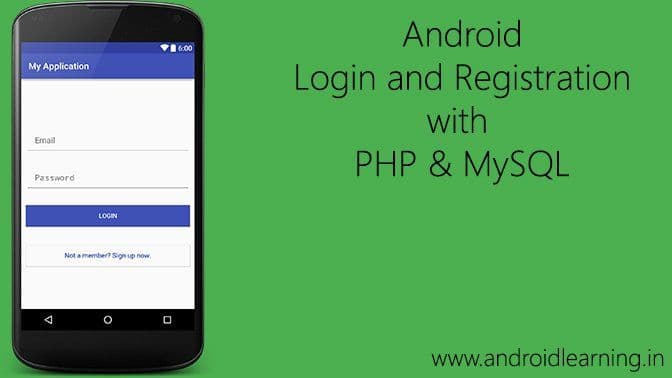
Welcome to our new updated tutorial, Android Login and Registration with PHP MySQL. In this tutorial we will create a simple App where user can register and then the user can login. So lets begin creating an app for Android Login and Registration with PHP MySQL.

 Login Screen[/caption]
[caption id="attachment_553" align="alignleft" width="171"]
Login Screen[/caption]
[caption id="attachment_553" align="alignleft" width="171"] Register Screen[/caption]
[caption id="attachment_554" align="alignleft" width="171"]
Register Screen[/caption]
[caption id="attachment_554" align="alignleft" width="171"] Home Screen[/caption]
1. Downloading & Installing WAMP
Download & Install WAMP server from www.wampserver.com/en/. Once installed, launch the program from Start ⇒ All Programs ⇒ WampServer ⇒ StartWampServer. If you are on Mac, alternatively you can use MAMP for the same. You can test your server by opening the address http://localhost/ in your browser. Also you can check phpmyadmin by opening http://localhost/phpmyadmin Following is a screencast of Downloading and Installing WAMP Server.
2. Creating MySQL Database and Tables
Open phpmyadmin and execute below queries to create necessary database and table. Here we are creating only one table users to store users login information.create database android_login /** Creating Database **/
use android_login /** Selecting Database **/
create table users (
id int(11) primary key auto_increment,
unique_id varchar(250) not null unique,
name varchar(50) not null,
email varchar(100) not null unique,
encrypted_password varchar(250) not null,
created_at datetime
); /** Creating Users Table **/3. Creating PHP Project
Goto the location where wamp installed and open www folder. The default installation location of wamp would be C:/wamp. 1. Go into www folder and create a folder named android_login. This will be the root directory of our project. 2. Now inside android_login, create a php file named config.php and add below content. Replace the $username and $password values with your’s.<?php
$username = "root";
$password = "root";
$host = "localhost";
$dbname = "android_login";
$options = array(PDO::MYSQL_ATTR_INIT_COMMAND => 'SET NAMES utf8');
try {
$db = new PDO("mysql:host={$host};dbname={$dbname};charset=utf8", $username, $password, $options);
} catch(PDOException $ex) {
die("Failed to connect to the database: " . $ex->getMessage());
}
$db->setAttribute(PDO::ATTR_ERRMODE, PDO::ERRMODE_EXCEPTION);
$db->setAttribute(PDO::ATTR_DEFAULT_FETCH_MODE, PDO::FETCH_ASSOC);
if(function_exists('get_magic_quotes_gpc') && get_magic_quotes_gpc()) {
function undo_magic_quotes_gpc(&$array) {
foreach($array as &$value) {
if(is_array($value)) {
undo_magic_quotes_gpc($value);
}
else {
$value = stripslashes($value);
}
}
}
undo_magic_quotes_gpc($_POST);
undo_magic_quotes_gpc($_GET);
undo_magic_quotes_gpc($_COOKIE);
}
header('Content-Type: text/html; charset=utf-8');
session_start();
?>3.1 Registration Endpoint
Let’s start creating the endpoint for user registration. This endpoint accepts name, email and password as POST parameters and store the user in MySQL database. 3. In android_login root directory, create register.php and below code.<?php
require("config.php");
if (!empty($_POST)) {
$response = array(
"error" => FALSE
);
$query = " SELECT 1 FROM users WHERE email = :email";
//now lets update what :user should be
$query_params = array(
':email' => $_POST['email']
);
try {
$stmt = $db->prepare($query);
$result = $stmt->execute($query_params);
}
catch (PDOException $ex) {
$response["error"] = TRUE;
$response["message"] = "Database Error1. Please Try Again!";
die(json_encode($response));
}
$row = $stmt->fetch();
if ($row) {
$response["error"] = TRUE;
$response["message"] = "I'm sorry, this email is already in use";
die(json_encode($response));
} else {
$query = "INSERT INTO users ( unique_id, name, email, encrypted_password, created_at ) VALUES ( :uuid, :name, :email, :encrypted_password, NOW() ) ";
$query_params = array(
':uuid' => uniqid('', true),
':name' => $_POST['name'],
':email' => $_POST['email'],
':encrypted_password' => password_hash($_POST['password'], PASSWORD_DEFAULT) // encrypted password
);
try {
$stmt = $db->prepare($query);
$result = $stmt->execute($query_params);
}
catch (PDOException $ex) {
$response["error"] = TRUE;
$response["message"] = "Database Error2. Please Try Again!";
die(json_encode($response));
}
$response["error"] = FALSE;
$response["message"] = "Register successful!";
echo json_encode($response);
}
} else {
echo 'Android Learning';
}
?>3.2 Login Endpoint
Just like registration, we need to create another endpoint for login. This endpoint accepts email and password as POST parameters. After receiving the email and password, it checks in database for matched user. If the user is matched, it echoes the success the json response. 4. Create a php file named login.php inside android_login with the below content.<?php
require("config.php");
if (!empty($_POST)) {
$response = array("error" => FALSE);
$query = "SELECT * FROM users WHERE email = :email";
$query_params = array(
':email' => $_POST['email']
);
try {
$stmt = $db->prepare($query);
$result = $stmt->execute($query_params);
}
catch (PDOException $ex) {
$response["error"] = true;
$response["message"] = "Database Error1. Please Try Again!";
die(json_encode($response));
}
$validated_info = false;
$login_ok = false;
$email = $_POST['email'];
$row = $stmt->fetch();
if (password_verify($_POST['password'], $row['encrypted_password'])) {
$login_ok = true;
}
if ($login_ok == true) {
$response["error"] = false;
$response["message"] = "Login successful!";
$response["user"]["name"] = $row["name"];
$response["user"]["email"] = $row["email"];
$response["user"]["uid"] = $row["unique_id"];
$response["user"]["created_at"] = $row["created_at"];
die(json_encode($response));
} else {
$response["error"] = true;
$response["message"] = "Invalid Credentials!";
die(json_encode($response));
}
} else {
echo 'Android Learning';
}
?>3.3 Types of JSON Responses
The following are the different types of JSON responses for registration and login endpoints. 3.3.1 Registration URL: http://localhost/android_login/register.php PARAMS: name, email, password Registration success response{
"error": false,
"message": "Register successful!"
}
{
    "error": true,
    "message": "Database Error1. Please Try Again!"
}
{
    "error": true,
    "message": "I’m sorry, this email is already in use"
}
{
    "error": false,
    "message": "Login successful!",
    "user": {
        "name": "Akshay Raj",
        "email": "snowcorp2@gmail.com",
        "created_at": "2016-06-16 08:43:48"
    }
}
{
    "error": true,
    "message": "Invalid Credentials!"
}
4. Creating the Android Project
The app we’re gonna build will have three simple screens Login Screen, Registration Screen and a welcome Dashboard Screen. 1. In Android Studio, create a new project from File ⇒ New Project and fill all the required details. more details go to Create Android Project. 2. Open build.gradle and add volley library support by adding compile 'com.android.volley:volley:1.0.0' under dependencies.dependencies {
compile fileTree(include: ['*.jar'], dir: 'libs')
compile 'com.android.support:appcompat-v7:23.4.0'
compile 'com.android.support:design:23.4.0'
compile 'com.android.volley:volley:1.0.0'
}<resources>
<string name="app_name">My Application</string>
<string name="hint_email">Email</string>
<string name="hint_password">Password</string>
<string name="hint_name">Fullname</string>
<string name="login">Login</string>
<string name="register">Register</string>
<string name="btn_link_to_register">Not a member? Sign up now.</string>
<string name="btn_link_to_login">Already registred! Login Me.</string>
<string name="welcome">Welcome</string>
</resources><?xml version="1.0" encoding="utf-8"?>
<resources>
<color name="colorPrimary">#3F51B5</color>
<color name="colorPrimaryDark">#303F9F</color>
<color name="colorAccent">#FF4081</color>
<color name="white">#ffffff</color>
</resources>package akraj.snow.app;
import android.app.Application;
import android.text.TextUtils;
import com.android.volley.Request;
import com.android.volley.RequestQueue;
import com.android.volley.toolbox.Volley;
/**
* Created by Akshay Raj on 6/16/2016.
*/
public class MyApplication extends Application {
public static final String TAG = MyApplication.class.getSimpleName();
private RequestQueue mRequestQueue;
private static MyApplication mInstance;
@Override
public void onCreate() {
super.onCreate();
mInstance = this;
}
public static synchronized MyApplication getInstance() {
return mInstance;
}
public RequestQueue getRequestQueue() {
if (mRequestQueue == null) {
mRequestQueue = Volley.newRequestQueue(getApplicationContext());
}
return mRequestQueue;
}
public <T> void addToRequestQueue(Request<T> req, String tag) {
req.setTag(TextUtils.isEmpty(tag) ? TAG : tag);
getRequestQueue().add(req);
}
public <T> void addToRequestQueue(Request<T> req) {
req.setTag(TAG);
getRequestQueue().add(req);
}
public void cancelPendingRequests(Object tag) {
if (mRequestQueue != null) {
mRequestQueue.cancelAll(tag);
}
}
}<?xml version="1.0" encoding="utf-8"?>
<manifest xmlns:android="http://schemas.android.com/apk/res/android"
package="com.circleeduventures.app"
android:versionCode="2"
android:versionName="1.0.0.2">
<uses-sdk
android:minSdkVersion="15"
android:targetSdkVersion="23" />
<uses-permission android:name="android.permission.INTERNET" />
<uses-permission android:name="android.permission.ACCESS_NETWORK_STATE" />
<application
android:name=".MyApplication"
android:allowBackup="true"
android:icon="@mipmap/ic_launcher"
android:label="@string/app_name"
android:theme="@style/AppTheme">
<!-- Login Activity -->
<activity
android:name=".LoginActivity"
android:configChanges="orientation|screenSize"
android:label="@string/app_name"
android:screenOrientation="portrait">
<intent-filter>
<action android:name="android.intent.action.MAIN" />
<category android:name="android.intent.category.LAUNCHER" />
</intent-filter>
</activity>
<!-- Main Activity -->
<activity
android:name=".MainActivity"
android:label="@string/app_name"
android:screenOrientation="portrait">
</activity>
<!-- Register Activity -->
<activity
android:name=".RegisterActivity"
android:label="@string/app_name"
android:screenOrientation="portrait">
</activity>
</application>
</manifest>4.1 Adding the Login Screen
Now we’ll implement the login module by creating the screen and adding the code to make login request to php, mysql server. 7. Create an xml file named activity_login.xml under res ⇒ layout.<?xml version="1.0" encoding="utf-8"?>
<LinearLayout xmlns:android="http://schemas.android.com/apk/res/android"
android:orientation="vertical"
android:layout_width="match_parent"
android:layout_height="match_parent"
android:padding="10dp"
android:gravity="center">
<android.support.design.widget.TextInputLayout
android:id="@+id/lTextEmail"
android:layout_width="match_parent"
android:layout_height="wrap_content"
android:layout_marginBottom="10dp" >
<EditText
android:layout_width="match_parent"
android:layout_height="wrap_content"
android:id="@+id/lEditEmail"
android:hint="@string/hint_email"
android:inputType="textEmailAddress"
android:padding="20dp"/>
</android.support.design.widget.TextInputLayout>
<android.support.design.widget.TextInputLayout
android:id="@+id/lTextPassword"
android:layout_width="match_parent"
android:layout_height="wrap_content"
android:layout_marginBottom="10dp" >
<EditText
android:layout_width="match_parent"
android:layout_height="wrap_content"
android:id="@+id/lEditPassword"
android:hint="@string/hint_password"
android:inputType="textPassword"
android:padding="20dp"/>
</android.support.design.widget.TextInputLayout>
<Button
android:layout_width="match_parent"
android:layout_height="wrap_content"
android:text="@string/login"
android:layout_marginTop="20dp"
android:background="@color/colorPrimary"
android:textColor="@color/white"
android:id="@+id/btnLogin"/>
<Button
android:id="@+id/btnLinkToRegisterScreen"
android:layout_width="fill_parent"
android:layout_height="wrap_content"
android:layout_marginTop="40dip"
android:background="@null"
android:text="@string/btn_link_to_register"
android:textAllCaps="false"
android:textColor="@color/colorPrimary"
android:textSize="15sp" />
</LinearLayout>package akraj.snow.app;
import android.app.ProgressDialog;
import android.content.Intent;
import android.os.Bundle;
import android.support.design.widget.TextInputLayout;
import android.support.v7.app.AppCompatActivity;
import android.util.Log;
import android.view.View;
import android.widget.Button;
import android.widget.Toast;
import com.android.volley.Request;
import com.android.volley.Response;
import com.android.volley.VolleyError;
import com.android.volley.toolbox.StringRequest;
import org.json.JSONException;
import org.json.JSONObject;
import java.util.HashMap;
import java.util.Map;
/**
* Created by Akshay Raj on 6/16/2016.
*/
public class LoginActivity extends AppCompatActivity {
private static final String TAG = LoginActivity.class.getSimpleName();
private static final String URL_LOGIN = "http://192.168.1.100/android_login/login.php";
private Button btnLogin, btnLinkToRegister;
private TextInputLayout inputEmail, inputPassword;
private ProgressDialog pDialog;
@Override
protected void onCreate(Bundle savedInstanceState) {
super.onCreate(savedInstanceState);
setContentView(R.layout.activity_login);
inputEmail = (TextInputLayout) findViewById(R.id.lTextEmail);
inputPassword = (TextInputLayout) findViewById(R.id.lTextPassword);
btnLogin = (Button) findViewById(R.id.btnLogin);
btnLinkToRegister = (Button) findViewById(R.id.btnLinkToRegisterScreen);
// Progress dialog
pDialog = new ProgressDialog(this);
pDialog.setCancelable(false);
// Login button Click Event
btnLogin.setOnClickListener(new View.OnClickListener() {
public void onClick(View view) {
String email = inputEmail.getEditText().getText().toString().trim();
String password = inputPassword.getEditText().getText().toString().trim();
// Check for empty data in the form
if (!email.isEmpty() && !password.isEmpty()) {
// login user
loginProcess(email, password);
} else {
// Prompt user to enter credentials
Toast.makeText(getApplicationContext(), "Please enter the credentials!", Toast.LENGTH_LONG).show();
}
}
});
// Link to Register Screen
btnLinkToRegister.setOnClickListener(new View.OnClickListener() {
public void onClick(View view) {
Intent i = new Intent(getApplicationContext(), RegisterActivity.class);
startActivity(i);
finish();
}
});
}
private void loginProcess(final String email, final String password) {
// Tag used to cancel the request
String tag_string_req = "req_login";
pDialog.setMessage("Logging in ...");
showDialog();
StringRequest strReq = new StringRequest(Request.Method.POST,
URL_LOGIN, new Response.Listener<String>() {
@Override
public void onResponse(String response) {
Log.d(TAG, "Login Response: " + response.toString());
hideDialog();
try {
JSONObject jObj = new JSONObject(response);
boolean error = jObj.getBoolean("error");
// Check for error node in json
if (!error) {
// user successfully logged in
JSONObject user = jObj.getJSONObject("user");
String name = user.getString("name");
String email = user.getString("email");
// Launch main activity
Intent intent = new Intent(LoginActivity.this, MainActivity.class);
intent.putExtra("name", name);
intent.putExtra("email", email);
startActivity(intent);
finish();
} else {
// Error in login. Get the error message
String errorMsg = jObj.getString("message");
Toast.makeText(getApplicationContext(), errorMsg, Toast.LENGTH_LONG).show();
}
} catch (JSONException e) {
// JSON error
e.printStackTrace();
Toast.makeText(getApplicationContext(), "Json error: " + e.getMessage(), Toast.LENGTH_LONG).show();
}
}
}, new Response.ErrorListener() {
@Override
public void onErrorResponse(VolleyError error) {
Log.e(TAG, "Login Error: " + error.getMessage());
Toast.makeText(getApplicationContext(), error.getMessage(), Toast.LENGTH_LONG).show();
hideDialog();
}
}) {
@Override
protected Map<String, String> getParams() {
// Posting parameters to login url
Map<String, String> params = new HashMap<String, String>();
params.put("email", email);
params.put("password", password);
return params;
}
};
// Adding request to request queue
MyApplication.getInstance().addToRequestQueue(strReq, tag_string_req);
}
private void showDialog() {
if (!pDialog.isShowing())
pDialog.show();
}
private void hideDialog() {
if (pDialog.isShowing())
pDialog.dismiss();
}
}4.2 Adding the Registration Screen
9. Create an xml layout named activity_register.xml under res ⇒ layout.<?xml version="1.0" encoding="utf-8"?>
<LinearLayout xmlns:android="http://schemas.android.com/apk/res/android"
android:orientation="vertical"
android:layout_width="match_parent"
android:layout_height="match_parent"
android:padding="10dp"
android:gravity="center">
<android.support.design.widget.TextInputLayout
android:id="@+id/rTextName"
android:layout_width="match_parent"
android:layout_height="wrap_content"
android:layout_marginBottom="10dp" >
<EditText
android:layout_width="match_parent"
android:layout_height="wrap_content"
android:id="@+id/rName"
android:hint="@string/hint_name"
android:padding="20dp"/>
</android.support.design.widget.TextInputLayout>
<android.support.design.widget.TextInputLayout
android:id="@+id/rTextEmail"
android:layout_width="match_parent"
android:layout_height="wrap_content"
android:layout_marginBottom="10dp" >
<EditText
android:layout_width="match_parent"
android:layout_height="wrap_content"
android:id="@+id/rEditEmail"
android:hint="@string/hint_email"
android:inputType="textEmailAddress"
android:padding="20dp"/>
</android.support.design.widget.TextInputLayout>
<android.support.design.widget.TextInputLayout
android:id="@+id/rTextPassword"
android:layout_width="match_parent"
android:layout_height="wrap_content"
android:layout_marginBottom="10dp" >
<EditText
android:layout_width="match_parent"
android:layout_height="wrap_content"
android:id="@+id/rEditPassword"
android:hint="@string/hint_password"
android:inputType="textPassword"
android:padding="20dp"/>
</android.support.design.widget.TextInputLayout>
<Button
android:layout_width="match_parent"
android:layout_height="wrap_content"
android:text="@string/register"
android:layout_marginTop="20dp"
android:background="@color/colorPrimary"
android:textColor="@color/white"
android:id="@+id/btnRegister"/>
<Button
android:id="@+id/btnLinkToLoginScreen"
android:layout_width="match_parent"
android:layout_height="wrap_content"
android:layout_marginTop="40dip"
android:background="@null"
android:text="@string/btn_link_to_login"
android:textAllCaps="false"
android:textColor="@color/colorPrimary"
android:textSize="15sp" />
</LinearLayout>package akraj.snow.app;
import android.app.ProgressDialog;
import android.content.Intent;
import android.os.Bundle;
import android.support.design.widget.TextInputLayout;
import android.support.v7.app.AppCompatActivity;
import android.util.Log;
import android.view.View;
import android.widget.Button;
import android.widget.Toast;
import com.android.volley.Request;
import com.android.volley.Response;
import com.android.volley.VolleyError;
import com.android.volley.toolbox.StringRequest;
import org.json.JSONException;
import org.json.JSONObject;
import java.util.HashMap;
import java.util.Map;
/**
* Created by Akshay Raj on 6/16/2016.
*/
public class RegisterActivity extends AppCompatActivity {
private static final String TAG = RegisterActivity.class.getSimpleName();
private static final String URL_REGISTER = "http://192.168.1.100/android_login/register.php";
private Button btnRegister, btnLinkToLogin;
private TextInputLayout inputName, inputEmail, inputPassword;
private ProgressDialog pDialog;
@Override
protected void onCreate(Bundle savedInstanceState) {
super.onCreate(savedInstanceState);
setContentView(R.layout.activity_register);
inputName = (TextInputLayout) findViewById(R.id.rTextName);
inputEmail = (TextInputLayout) findViewById(R.id.rTextEmail);
inputPassword = (TextInputLayout) findViewById(R.id.rTextPassword);
btnRegister = (Button) findViewById(R.id.btnRegister);
btnLinkToLogin = (Button) findViewById(R.id.btnLinkToLoginScreen);
// Progress dialog
pDialog = new ProgressDialog(this);
pDialog.setCancelable(false);
// Login button Click Event
btnRegister.setOnClickListener(new View.OnClickListener() {
public void onClick(View view) {
String name = inputName.getEditText().getText().toString().trim();
String email = inputEmail.getEditText().getText().toString().trim();
String password = inputPassword.getEditText().getText().toString().trim();
// Check for empty data in the form
if (!name.isEmpty() && !email.isEmpty() && !password.isEmpty()) {
registerUser(name, email, password);
} else {
Toast.makeText(getApplicationContext(), "Please enter your details!", Toast.LENGTH_LONG).show();
}
}
});
// Link to Register Screen
btnLinkToLogin.setOnClickListener(new View.OnClickListener() {
public void onClick(View view) {
Intent i = new Intent(RegisterActivity.this, LoginActivity.class);
startActivity(i);
finish();
}
});
}
private void registerUser(final String name, final String email, final String password) {
// Tag used to cancel the request
String tag_string_req = "req_register";
pDialog.setMessage("Registering ...");
showDialog();
StringRequest strReq = new StringRequest(Request.Method.POST,
URL_REGISTER, new Response.Listener<String>() {
@Override
public void onResponse(String response) {
Log.d(TAG, "Register Response: " + response.toString());
hideDialog();
try {
JSONObject jObj = new JSONObject(response);
boolean error = jObj.getBoolean("error");
if (!error) {
// User successfully stored in MySQL
Toast.makeText(getApplicationContext(),
"User successfully registered. Try login now!", Toast.LENGTH_LONG).show();
// Launch login activity
Intent intent = new Intent(RegisterActivity.this, LoginActivity.class);
startActivity(intent);
finish();
} else {
// Error occurred in registration. Get the error
// message
String errorMsg = jObj.getString("error_msg");
Toast.makeText(getApplicationContext(),errorMsg, Toast.LENGTH_LONG).show();
}
} catch (JSONException e) {
e.printStackTrace();
}
}
}, new Response.ErrorListener() {
@Override
public void onErrorResponse(VolleyError error) {
Log.e(TAG, "Registration Error: " + error.getMessage());
Toast.makeText(getApplicationContext(), error.getMessage(), Toast.LENGTH_LONG).show();
hideDialog();
}
}) {
@Override
protected Map<String, String> getParams() {
// Posting params to register url
Map<String, String> params = new HashMap<String, String>();
params.put("name", name);
params.put("email", email);
params.put("password", password);
return params;
}
};
// Adding request to request queue
MyApplication.getInstance().addToRequestQueue(strReq, tag_string_req);
}
private void showDialog() {
if (!pDialog.isShowing())
pDialog.show();
}
private void hideDialog() {
if (pDialog.isShowing())
pDialog.dismiss();
}
}4.3 Adding the Home Screen
Until now we are done with both login and registration screen. Now we’ll add the final screen to show the logged in user information. This information will be fetched from SQLite database once user is logged in. 11. Create an xml file named activity_main.xml under res ⇒ layout and add below code.<LinearLayout xmlns:android="http://schemas.android.com/apk/res/android"
android:layout_width="match_parent"
android:layout_height="match_parent"
android:layout_centerInParent="true"
android:layout_marginLeft="20dp"
android:layout_marginRight="20dp"
android:gravity="center"
android:orientation="vertical">
<TextView
android:layout_width="wrap_content"
android:layout_height="wrap_content"
android:text="@string/welcome"
android:textSize="20sp" />
<TextView
android:id="@+id/name"
android:layout_width="wrap_content"
android:layout_height="wrap_content"
android:padding="10dp"
android:textSize="24sp" />
<TextView
android:id="@+id/email"
android:layout_width="wrap_content"
android:layout_height="wrap_content"
android:textSize="13sp" />
</LinearLayout>package akraj.snow.app;
import android.os.Bundle;
import android.support.v7.app.AppCompatActivity;
import android.widget.TextView;
/**
* Created by Akshay Raj on 6/16/2016.
*/
public class MainActivity extends AppCompatActivity {
private TextView txtName, txtEmail;
@Override
protected void onCreate(Bundle savedInstanceState) {
super.onCreate(savedInstanceState);
setContentView(R.layout.activity_main);
txtName = (TextView) findViewById(R.id.name);
txtEmail = (TextView) findViewById(R.id.email);
// Fetching user details from LoginActivity
Bundle bundle = getIntent().getExtras();
String name = bundle.getString("name");
String email = bundle.getString("email");
// Displaying the user details on the screen
txtName.setText(name);
txtEmail.setText(email);
}
}5. Testing the App
For a beginner it will be always difficult to run this project for the first time. But don’t worry, the following steps will helps you testing this app. (The ip address looks like 192.168.1.100) ⇒ Make sure that both devices (the device running the PHP project and the android device) are on the same wifi network. ⇒ Give correct username , password and database name of MySQL in config.php ⇒ Replace the URL ip address of URL_LOGIN and URL_REGISTER with your machine ip address. You can get the ip address by running ipconfig in cmd Below are the final outputs of this project. [caption id="attachment_552" align="alignleft" width="171"] Login Screen[/caption]
[caption id="attachment_553" align="alignleft" width="171"]
Login Screen[/caption]
[caption id="attachment_553" align="alignleft" width="171"] Register Screen[/caption]
[caption id="attachment_554" align="alignleft" width="171"]
Register Screen[/caption]
[caption id="attachment_554" align="alignleft" width="171"] Home Screen[/caption]