Firebase Cloud Messaging (FCM) is a cross-platform messaging solution that lets you reliably deliver messages and notifications at no cost.
Using FCM, you can notify a client app that new email or other data is available to sync. You can send notifications to drive user reengagement and retention. For use cases such as instant messaging, a message can transfer a payload of up to 4KB to a client app.
How does it work?

An FCM implementation includes an app server in your environment that interacts with FCM via HTTP or XMPP protocol, and a client app. Additionally, FCM includes the
Notifications console, which you can use to send notifications to client apps.
Firebase Notifications is built on Firebase Cloud Messaging and shares the same FCM SDK for client development. For testing or for sending marketing or engagement messages with powerful built-in targeting and analytics, you can use Notifications. For deployments with more complex messaging requirements, FCM is the right choice.
Implementation path
| Set up the FCM SDK |
Set up Firebase and FCM on your app according the setup instructions for your platform. |
| Develop your client app |
Add message handling, topic subscription logic, or other optional features to your client app. During the development, you can easily send test messages from the Notifications console. |
| Develop your app server |
Decide which server protocol(s) you want to use to interact with FCM, and add logic to authenticate, build send requests, handle response, and so on. Note that if you want to use upstream messaging from your client applications, you must use XMPP. |
Set Up a Firebase Cloud Messaging Client App on Android
To write your Firebase Cloud Messaging Android client app, use the
FirebaseMessaging API and
Android Studio 1.4 or higher with Gradle. The instructions in this page assume that you have completed the steps for
adding Firebase to your Android project.
FCM clients require devices running Android 4.1 or higher that also have the Google Play Store app installed, or an emulator running Android 4.1 with Google APIs. Note that you are not limited to deploying your Android apps through Google Play Store.
Set up Firebase and the FCM SDK
- If you haven't already, add Firebase to your Android project.
- In Android Studio, add the FCM dependency to your app-level build.gradle file:
dependencies {
     implementation 'com.google.firebase:firebase-messaging:17.3.4'
}
Edit your app manifest
Add the following to your app's manifest:
- A service that extends
FirebaseMessagingService. This is required if you want to do any message handling beyond receiving notifications on apps in the background. To receive notifications in foregrounded apps, to receive data payload, to send upstream messages, and so on, you must extend this service.
<service android:name=".MyFirebaseMessagingService">
    <intent-filter>
        <action android:name="com.google.firebase.MESSAGING_EVENT" />
    </intent-filter>
</service>
- (Optional) Within the application component, metadata elements to set a default notification icon and color. Android uses these values whenever incoming messages do not explicitly set icon or color.
<!-- Set custom default icon. This is used when no icon is set for incoming notification messages.
     See README(https://goo.gl/l4GJaQ) for more. -->
<meta-data
    android:name="com.google.firebase.messaging.default_notification_icon"
    android:resource="@drawable/ic_stat_ic_notification" />
<!-- Set color used with incoming notification messages. This is used when no color is set for the incoming
     notification message. See README(https://goo.gl/6BKBk7) for more. -->
<meta-data
    android:name="com.google.firebase.messaging.default_notification_color"
    android:resource="@color/colorAccent" />
- (Optional) From Android 8.0 (API level 26) and higher, notification channels are supported and recommended. FCM provides a default notification channel with basic settings. If you prefer to create and use your own default channel, set
default_notification_channel_id to the ID of your notification channel object as shown; FCM will use this value whenever incoming messages do not explicitly set a notification channel. To learn more, see Manage notification channels.
<!-- Set custom default icon. This is used when no icon is set for incoming notification messages.
     See README(https://goo.gl/l4GJaQ) for more. -->
<meta-data
    android:name="com.google.firebase.messaging.default_notification_icon"
    android:resource="@drawable/ic_stat_ic_notification" />
<!-- Set color used with incoming notification messages. This is used when no color is set for the incoming
     notification message. See README(https://goo.gl/6BKBk7) for more. -->
<meta-data
    android:name="com.google.firebase.messaging.default_notification_color"
    android:resource="@color/colorAccent" />
Check for Google Play Services APK
Apps that rely on the Play Services SDK should always check the device for a compatible Google Play services APK before accessing Google Play services features. It is recommended to do this in two places: in the main activity's
onCreate() method, and in its
onResume() method. The check in
onCreate() ensures that the app can't be used without a successful check. The check in
onResume() ensures that if the user returns to the running app through some other means, such as through the back button, the check is still performed. If the device doesn't have a compatible Google Play services APK, your app can call
GooglePlayServicesUtil.getErrorDialog() to allow users to download the APK from the Google Play Store or enable it in the device's system settings. For a code example, see
Setting up Google Play Services.
Access the device registration token
On initial startup of your app, the FCM SDK generates a registration token for the client app instance. If you want to target single devices or create device groups, you'll need to access this token by extending
FirebaseMessagingService and overriding
onNewToken.
This section describes how to retrieve the token and how to monitor changes to the token. Because the token could be rotated after initial startup, you are strongly recommended to retrieve the latest updated registration token.
The registration token may change when:
- The app deletes Instance ID
- The app is restored on a new device
- The user uninstalls/reinstall the app
- The user clears app data.
Retrieve the current registration token
When you need to retrieve the current token, call
FirebaseInstanceId.getInstance().getInstanceId()
Monitor token generation
the onNewToken callback fires whenever a new token is generated.
/**
 * Called if InstanceID token is updated. This may occur if the security of
 * the previous token had been compromised. Note that this is called when the InstanceID token
 * is initially generated so this is where you would retrieve the token.
 */
@Override
public void onNewToken(String token) {
    Log.d(TAG, "Refreshed token: " + token);

    // If you want to send messages to this application instance or
    // manage this apps subscriptions on the server side, send the
    // Instance ID token to your app server.
    sendRegistrationToServer(token);
}
After you've obtained the token, you can send it to your app server. See the
Instance ID API reference for full detail on the API.
Prevent auto initialization
Firebase generates an Instance ID, which FCM uses to generate a registration token and Analytics uses for data collection. When an Instance ID is generated, the library will upload the identifier and configuration data to Firebase. If you prefer to prevent Instance ID autogeneration, disable auto initialization for FCM and Analytics (you must disable both) by adding these metadata values to your
AndroidManifest.xml:
<meta-data
    android:name="firebase_messaging_auto_init_enabled"
    android:value="false" />
<meta-data
    android:name="firebase_analytics_collection_enabled"
    android:value="false" />
To re-enable FCM, make a runtime call:
FirebaseMessaging.getInstance().setAutoInitEnabled(true);
This value persists across app restarts once set.
Once the client app is set up, you are ready to start sending downstream messages with the Notifications composer.
Send a message from the Notifications console
- Install and run the app on the target devices.
- Open the Notifications tab of the Firebase console and select New Message.
- Enter message text.
- Select the message target. The dialog displays further options to refine the target based on whether you chooseApp/App Version, Device Language, or Users in Audience.
After you click
Send Message, targeted client devices that have the app in the background receive the notification in the system notifications tray. When a user taps on the notification, the app launcher opens your app.
Receive and handle notifications
If you want to receive notifications when your app is in the foreground, you need to add some message handling logic in your client app.
To receive messages, use a service that extends
FirebaseMessagingService. Your service should override the
onMessageReceived callback, which is provided for most message types, with the following exceptions:
- Notifications delivered when your app is in the background. In this case, the notification is delivered to the device’s system tray. A user tap on a notification opens the app launcher by default.
- Messages with both notification and data payload. In this case, the notification is delivered to the device’s system tray, and the data payload is delivered in the extras of the intent of your launcher Activity.
If you want to open your app and perform a specific action other than the default action, set
click_action as described
below.
In summary:
| App state |
Notification |
Data |
Both |
| Foreground |
onMessageReceived |
onMessageReceived |
onMessageReceived |
| Background |
System tray |
onMessageReceived |
Notification: system tray
Data: in extras of the intent. |
For more information about message types, see
Notifications and data messages.
Edit the app manifest
To use
FirebaseMessagingService, you need to add the following in your app manifest:
<service
    android:name=".MyFirebaseMessagingService">
    <intent-filter>
        <action android:name="com.google.firebase.MESSAGING_EVENT"/>
    </intent-filter>
</service>
Override onMessageReceived
By overriding the method
FirebaseMessagingService.onMessageReceived, you can perform actions based on the received message and get the message data:
@Override
public void onMessageReceived(RemoteMessage remoteMessage) {
    // ...

    // TODO(developer): Handle FCM messages here.
    // Not getting messages here? See why this may be: https://goo.gl/39bRNJ
    Log.d(TAG, "From: " + remoteMessage.getFrom());

    // Check if message contains a data payload.
    if (remoteMessage.getData().size() > 0) {
        Log.d(TAG, "Message data payload: " + remoteMessage.getData());

        if (/* Check if data needs to be processed by long running job */ true) {
            // For long-running tasks (10 seconds or more) use Firebase Job Dispatcher.
            scheduleJob();
        } else {
            // Handle message within 10 seconds
            handleNow();
        }

    }

    // Check if message contains a notification payload.
    if (remoteMessage.getNotification() != null) {
        Log.d(TAG, "Message Notification Body: " + remoteMessage.getNotification().getBody());
    }

    // Also if you intend on generating your own notifications as a result of a received FCM
    // message, here is where that should be initiated. See sendNotification method below.
}
Handle messages in a backgrounded app
When your app is in the background, Android directs notification messages to the system tray. A user tap on the notification opens the app launcher by default.
This includes messages that contain both notification and data payload. In these cases, the notification is delivered to the device's system tray, and the data payload is delivered in the extras of the intent of your launcher Activity.
If you want to open your app and perform a specific action, set
click_action in the
notification payload and map it to an intent filter in the Activity you want to launch. For example, set
click_action to
OPEN_ACTIVITY_1 to trigger an intent filter like the following:
<intent-filter>
  <action android:name="OPEN_ACTIVITY_1" />
  <category android:name="android.intent.category.DEFAULT" />
</intent-filter>
Background Restricted Apps (Android P or newer)
Starting Jan 2019, FCM will not deliver messages to apps which were put into
background restriction by the user (such as via: Setting -> Apps and Notification -> [appname] -> Battery). Once your app is removed from background restriction, new messages to the app will be delivered as before. In order to prevent lost messages and other background restriction impacts, make sure to avoid bad behaviors listed by the
Android vitals effort. These behaviors could lead to the Android device recommending to the user that your app be background restricted. Your app can check if it is background restricted using:
isBackgroundRestricted().
Advanced Messaging Options
Firebase Cloud Messaging (FCM) offers a broad range of messaging options and capabilities. To help you build an understanding of what you can do with FCM, this page lists and describes some of the most commonly used message options.
Many of these options are available only through the Firebase Cloud Messaging server implementation. For the full list of message options, see the reference information for your chosen connection server protocol,
HTTP or
XMPP.
How to find Firebase Api key ?
1- Go to
Firebase Console.
2- Select your project.
3- Then go to Project Setting.


4- Click Cloud Messaging tab and Copy Server Key.

Sending Push Notification By PHP
Creating MySQL Database
1. Open phpmyadmin panel by going to
http://localhost/phpmyadmin and create a database called
fcm. (if your localhost is running on port number add port number to url)
2. After creating the database, select the database and execute following query in SQL tab to create
users table.
CREATE TABLE IF NOT EXISTS `users` (
`id` int(11) NOT NULL AUTO_INCREMENT,
`fcm_registered_id` text,
`name` varchar(50) NOT NULL,
`email` varchar(255) NOT NULL,
`created_at` timestamp NOT NULL DEFAULT CURRENT_TIMESTAMP,
PRIMARY KEY (`id`)
) ENGINE=InnoDB DEFAULT CHARSET=latin1 AUTO_INCREMENT=1 ;
Check the following video to know about creating database and php project.
Creating & Running the PHP Project
When we are making request to FCM server using PHP i used curl to make post request. Before creating php project enable curl module in your php extensions.
Left Click on the WAMP icon the system try ->
PHP ->
PHP Extensions -> Enable
php_curl
1. Goto your
WAMP folder and inside
www folder create a folder called
fcm_server. (In my case i installed wamp in D:\WAMP)
2. Create a file called
config.php
<?php
$username = "root";
$password = "root";
$host = "localhost";
$dbname = "fcm";
$options = array(PDO::MYSQL_ATTR_INIT_COMMAND => 'SET NAMES utf8');
try
{
$db = new PDO("mysql:host={$host};dbname={$dbname};charset=utf8", $username, $password, $options);
}
catch(PDOException $ex)
{
die("Failed to connect to the database: " . $ex->getMessage());
}
$db->setAttribute(PDO::ATTR_ERRMODE, PDO::ERRMODE_EXCEPTION);
$db->setAttribute(PDO::ATTR_DEFAULT_FETCH_MODE, PDO::FETCH_ASSOC);
if(function_exists('get_magic_quotes_gpc') && get_magic_quotes_gpc())
{
function undo_magic_quotes_gpc(&$array)
{
foreach($array as &$value)
{
if(is_array($value))
{
undo_magic_quotes_gpc($value);
}
else
{
$value = stripslashes($value);
}
}
}
undo_magic_quotes_gpc($_POST);
undo_magic_quotes_gpc($_GET);
undo_magic_quotes_gpc($_COOKIE);
}
header('Content-Type: text/html; charset=utf-8');
session_start();
?>
3. Now create registration file
register.php
<?php
require("config.inc.php");
if (!empty($_POST)) {
   $response = array("error" => FALSE);
    $query = " SELECT * FROM users WHERE email = :email";
    //now lets update what :user should be
    $query_params = array(
        ':email' => $_POST['email']
    );
    try {
        $stmt   = $db->prepare($query);
        $result = $stmt->execute($query_params);
    }
    catch (PDOException $ex) {
        $response["error"] = TRUE;
        $response["error_msg"] = "Database Error1. Please Try Again!";
        die(json_encode($response));
    }
    $row = $stmt->fetch();
    if ($row) {
      $response["error"] = TRUE;
        $response["error_msg"] = "I'm sorry, this email is already in use";
        die(json_encode($response));
   } else {
      $query = "INSERT INTO users ( name, email, fcm_registered_id, created_at ) VALUES ( :name, :email, :fcm_id, NOW() ) ";
      $query_params = array(
         ':name' => $_POST['name'],
         ':email' => $_POST['email'],
         ':fcm_id' => $_POST['fcm_id']
      );
      try {
         $stmt   = $db->prepare($query);
         $result = $stmt->execute($query_params);
      }
      catch (PDOException $ex) {
         $response["error"] = TRUE;
         $response["error_msg"] = "Database Error2. Please Try Again!";
         die(json_encode($response));
      }
      $response["error"] = FALSE;
      $response["error_msg"] = "Register successful!";
      echo json_encode($response);
   }
} else {
?>
   <h1>Register</h1>
   <form action="register.php" method="post">
       name:<br />
       <input type="text" name="name" value="" />
       <br /><br />
      email:<br />
       <input type="text" name="email" value="" />
       <br /><br />
      fcm_id:<br />
       <input type="text" name="fcm_id" value="" />
       <br /><br />
       <input type="submit" value="Register" />
   </form>
   <?php
}
?>
4. Create another file called
admin.php
<?php
require("config.inc.php");
$query = "SELECT * FROM users";
$stmt = $db->query($query);
$target_path = 'uploads/';
if (!empty($_POST)) {
$response = array("error" => FALSE);
function send_gcm_notify($reg_id, $message, $img_url, $tag) {
define("GOOGLE_API_KEY", "AIzaSyBsGSPuDKtN5KNmxK1zSqonaMMHUmAfeFQ");
define("GOOGLE_GCM_URL", "https://fcm.googleapis.com/fcm/send");
$fields = array(
'to' => $reg_id ,
'priority' => "high",
'data' => array("title" => "Android Learning", "message" => $message, "image"=> $img_url, "tag" => $tag)
);
$headers = array(
GOOGLE_GCM_URL,
'Content-Type: application/json',
'Authorization: key=' . GOOGLE_API_KEY
);
echo "<br>";
$ch = curl_init();
curl_setopt($ch, CURLOPT_URL, GOOGLE_GCM_URL);
curl_setopt($ch, CURLOPT_POST, true);
curl_setopt($ch, CURLOPT_HTTPHEADER, $headers);
curl_setopt($ch, CURLOPT_RETURNTRANSFER, true);
curl_setopt($ch, CURLOPT_SSL_VERIFYPEER, false);
curl_setopt($ch, CURLOPT_POSTFIELDS, json_encode($fields));
$result = curl_exec($ch);
if ($result === FALSE) {
die('Problem occurred: ' . curl_error($ch));
}
curl_close($ch);
echo $result;
}
$reg_id = $_POST['fcm_id'];
$msg = $_POST['msg'];
$img_url = '';
$tag = 'text';
if ($_FILES['image']['name'] != '') {
$tag = 'image';
$target_file = $target_path . basename($_FILES['image']['name']);
$img_url = 'http://192.168.225.83:8080/fcm_server/'.$target_file;
try {
// Throws exception incase file is not being moved
if (!move_uploaded_file($_FILES['image']['tmp_name'], $target_file)) {
// make error flag true
echo json_encode(array('status'=>'fail', 'message'=>'could not move file'));
}
// File successfully uploaded
echo json_encode(array('status'=>'success', 'message'=> $img_url));
} catch (Exception $e) {
// Exception occurred. Make error flag true
echo json_encode(array('status'=>'fail', 'message'=>$e->getMessage()));
}
send_gcm_notify($reg_id, $msg, $img_url, $tag);
} else {
send_gcm_notify($reg_id, $msg, $img_url, $tag);
}
}
?>
<!Doctype html>
<html>
<head>
<meta charset="utf-8">
<!--Import Google Icon Font-->
<link href="http://fonts.googleapis.com/icon?family=Material+Icons" rel="stylesheet">
<!--Import materialize.css-->
<link type="text/css" rel="stylesheet" href="../script/css/materialize.min.css" media="screen,projection"/>
<!--Let browser know website is optimized for mobile-->
<meta name="viewport" content="width=device-width, initial-scale=1.0"/>
<title>Admin | FCM Server</title>
<style>body, .row{ text-align: center;}</style>
<script>
$(function(){
$("textarea").val("");
});
function checkTextAreaLen(){
var msgLength = $.trim($("textarea").val()).length;
if(msgLength == 0){
alert("Please enter message before hitting submit button");
return false;
}else{
return true;
}
}
</script>
</head>
<body>
<h1>Admin Panel</h1>
<div class="row">
<div class="col s12 m12 l2"><p></p></div>
<form class="col s12 m12 l8" action="admin.php" method="post" enctype="multipart/form-data" onsubmit="return checkTextAreaLen()">
<div class="row">
<div class="input-field col s12">
<select name="fcm_id" required>
<option value="" disabled selected>Select User</option>
<?php while ($row = $stmt->fetch(PDO::FETCH_ASSOC)) {
echo "<option value='".$row['fcm_registered_id']."'>".$row['name']." <".$row['email']."></option>";
} ?>
</select><br><br>
<div class="file-field input-field">
<div class="btn">
<span>File</span>
<input type="file" name="image">
</div>
<div class="file-path-wrapper">
<input class="file-path validate" type="text">
</div>
</div>
<textarea id="msg" name="msg" class="materialize-textarea" placeholder="Type your message"></textarea>
<br><br>
<button class="btn waves-effect waves-light" type="submit" name="action">Send</button>
</div>
</div>
</form>
<div class="col s12 m12 l2"><p></p></div>
</div>
<!--Import jQuery before materialize.js-->
<script type="text/javascript" src="https://code.jquery.com/jquery-2.1.1.min.js"></script>
<script type="text/javascript" src="../script/js/materialize.min.js"></script>
<script>
$('select').material_select();
</script>
</body>
</html>
5. Now update your
MyFirebaseMessagingService.java file :-
package akraj.snow.fcm;

import android.app.NotificationChannel;
import android.app.NotificationManager;
import android.app.PendingIntent;
import android.content.Context;
import android.content.Intent;
import android.graphics.Bitmap;
import android.graphics.BitmapFactory;
import android.media.RingtoneManager;
import android.net.Uri;
import android.os.Build;
import android.support.v4.app.NotificationCompat;

import com.google.firebase.messaging.FirebaseMessagingService;
import com.google.firebase.messaging.RemoteMessage;

import java.io.IOException;
import java.io.InputStream;
import java.net.HttpURLConnection;
import java.net.URL;

/**
 * Created by Akshay Raj on on 1/17/2019.
 * akshay@snowcorp.org
 * www.snowcorp.org
 */

public class MyFirebaseMessagingService extends FirebaseMessagingService {
    private static final String TAG = "MyFirebaseMsgService";
    NotificationCompat.Builder notificationBuilder;
    Bitmap image;
    /**
     * Called when message is received.
     *
     * @param remoteMessage Object representing the message received from Firebase Cloud Messaging.
     */
    // [START receive_message]
    @Override
    public void onMessageReceived(RemoteMessage remoteMessage) {
        // TODO(developer): Handle FCM messages here.
        // If the application is in the foreground handle both data and notification messages here.
        // Also if you intend on generating your own notifications as a result of a received FCM
        // message, here is where that should be initiated. See sendNotification method below.
        String tag = remoteMessage.getData().get("tag");
        String msg = remoteMessage.getData().get("message");
        String img = remoteMessage.getData().get("image");
        image = getBitmapFromURL(img);
        sendNotification(tag, msg, image);
    }
    // [END receive_message]


    /**
     * Create and show a simple notification containing the received FCM message.
     *
     * @param messageBody FCM message body received.
     */
    private void sendNotification(String tag, String messageBody, Bitmap img) {
        Intent intent = new Intent(this, HomeActivity.class);
        intent.addFlags(Intent.FLAG_ACTIVITY_CLEAR_TOP);
        PendingIntent pendingIntent = PendingIntent.getActivity(this, 0 /* Request code */, intent,
                PendingIntent.FLAG_ONE_SHOT);
        Uri defaultSoundUri= RingtoneManager.getDefaultUri(RingtoneManager.TYPE_NOTIFICATION);

        String channelID = getString(R.string.channel_id);

        if (tag.equalsIgnoreCase("image")) {
            notificationBuilder = new NotificationCompat.Builder(this, channelID)
                    .setSmallIcon(R.mipmap.ic_launcher)
                    .setContentTitle("Android Learning")
                    .setContentText(messageBody)
                    .setStyle(new NotificationCompat.BigPictureStyle()
                            .bigPicture(img))
                    .setAutoCancel(true)
                    .setSound(defaultSoundUri)
                    .setContentIntent(pendingIntent);
        } else {
            notificationBuilder = new NotificationCompat.Builder(this, channelID)
                    .setSmallIcon(R.mipmap.ic_launcher)
                    .setContentTitle("Android Learning")
                    .setContentText(messageBody)
                    .setAutoCancel(true)
                    .setSound(defaultSoundUri)
                    .setContentIntent(pendingIntent);
        }
        NotificationManager notificationManager =
                (NotificationManager) getSystemService(Context.NOTIFICATION_SERVICE);

        // Since android Oreo notification channel is needed.
        if (Build.VERSION.SDK_INT >= Build.VERSION_CODES.O) {
            NotificationChannel channel = new NotificationChannel(channelID,
                    "Channel human readable title",
                    NotificationManager.IMPORTANCE_DEFAULT);
            notificationManager.createNotificationChannel(channel);
        }

        notificationManager.notify(0 /* ID of notification */, notificationBuilder.build());
    }

    private static Bitmap getBitmapFromURL(String src) {
        try {
            URL url = new URL(src);
            HttpURLConnection connection = (HttpURLConnection) url.openConnection();
            connection.setDoInput(true);
            connection.connect();
            InputStream input = connection.getInputStream();
            Bitmap myBitmap = BitmapFactory.decodeStream(input);
            return myBitmap;
        } catch (IOException e) {
            e.printStackTrace();
            return null;
        }
    }
}
6. Now run your app


 Source Code Download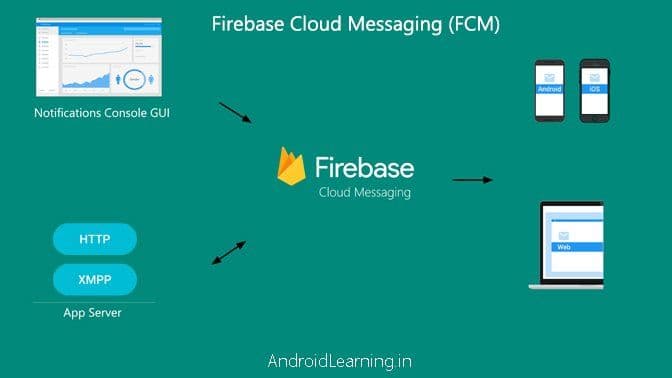


 4- Click Cloud Messaging tab and Copy Server Key.
