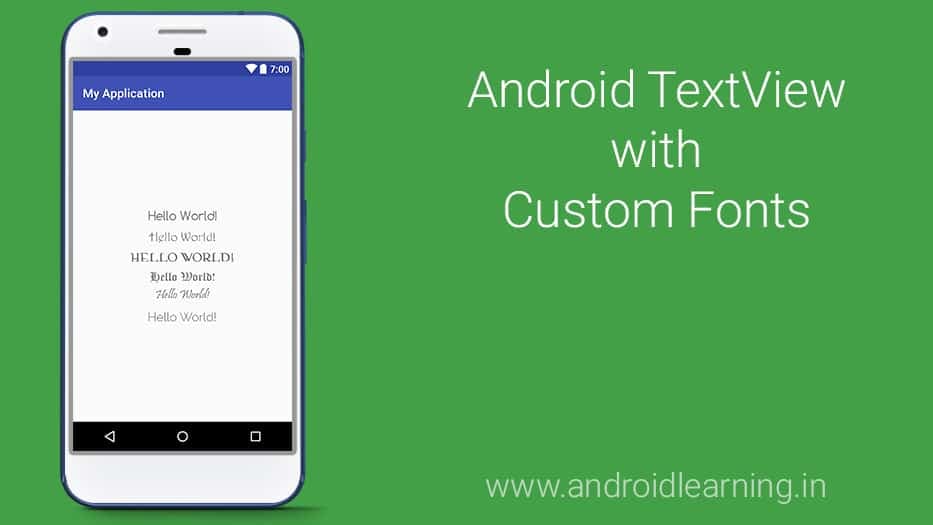
In android, you can define your own custom fonts for the TextView in your application. You just need to download the required font from the internet, and then place it in assets/fonts folder. After putting fonts in the assets folder under fonts folder, you can access it in your java code through Typeface class.

[embed]https://youtu.be/Ccqm3jDXBNk[/embed]
In this example, we are going to make a custom Android TextView that can change its font, by customizing its attributes from the XML.
Create an Android Studio Project
- Open Android Studio and choose “Start a new Android Studio Project” in the welcome screen. Go to Chapter 1 – Getting Started with Android Programming for creating new Android Studio project.
- Create a new folder named
assetsinsidesrc/main/folder. Then add a new folder namedfontsinsidesrc/main/assetsfolder. Now we are going to add some.ttffont file inside. - Create a new XML file inside
/values/folder, with the nameattrs.xml. We should have the/values/attrs.xmlfile and paste the code below.<?xml version="1.0" encoding="utf-8"?> <resources> <declare-styleable name="MyTextView"> <attr name="font" format="string" /> </declare-styleable> </resources> - Create a new Java class file named
MyTextViewand paste the code below.package org.snowcorp.textview; import android.content.Context; import android.content.res.TypedArray; import android.graphics.Typeface; import android.util.AttributeSet; /** * Created by Akshay Raj on 28-04-2017. * akshay@snowcorp.org * www.snowcorp.org */ public class MyTextView extends android.support.v7.widget.AppCompatTextView { public MyTextView(Context context, AttributeSet attrs, int defStyle) { super(context, attrs, defStyle); init(attrs); } public MyTextView(Context context, AttributeSet attrs) { super(context, attrs); init(attrs); } public MyTextView(Context context) { super(context); init(null); } private void init(AttributeSet attrs) { if (attrs != null) { TypedArray a = getContext().obtainStyledAttributes(attrs, R.styleable.MyTextView); String fontName = a.getString(R.styleable.MyTextView_font); try { if (fontName != null) { Typeface myTypeface = FontCache.get("fonts/" + fontName, getContext()); setTypeface(myTypeface); } } catch (Exception e) { e.printStackTrace(); } a.recycle(); } } } - Create another file named
FontCacheand copy below codes.package org.snowcorp.textview; import android.content.Context; import android.graphics.Typeface; import java.util.Hashtable; /** * Created by Akshay Raj on 28-04-2017. * akshay@snowcorp.org * www.snowcorp.org */ class FontCache { private static Hashtable<String, Typeface> fontCache = new Hashtable<>(); static Typeface get(String name, Context context) { Typeface tf = fontCache.get(name); if(tf == null) { try { tf = Typeface.createFromAsset(context.getAssets(), name); } catch (Exception e) { return null; } fontCache.put(name, tf); } return tf; } } - Add your Custom Text View in
activity_main.xmlfile.
If you want to change your TextView font then set your font in<org.snowcorp.textview.MyTextView android:layout_width="wrap_content" android:layout_height="wrap_content" android:text="Hello World!" android:textSize="30sp" android:padding="5dp" app:font="madariaga.ttf"/>app:font="YOUR_FONT.ttf" - Now run your project.
Complete Source Code
Download Project
Enter your email to unlock the download.