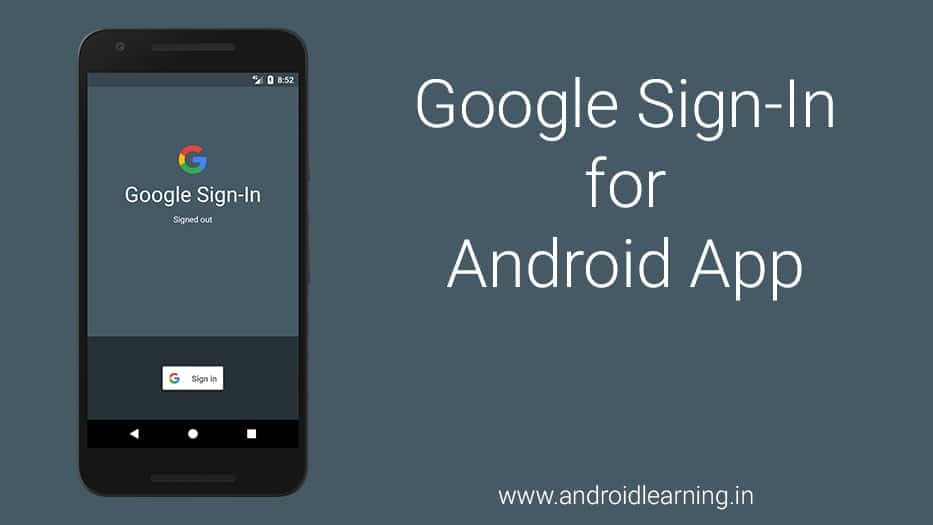
Today Almost all web and mobile apps allow you to log in with Google and Facebook. In this tutorial, we will describe how to integrate Google Sign-in to your Android Application, We will be creating a sample Google Login app describing how to integrate google login and retrieve user profile. The user can login using her existing google account.
 or you can open a direct link here.
The configuration file provides service-specific information for your app. To get it, you must select an existing project for your app or create a new one. You'll also need to provide a package name for your app.
or you can open a direct link here.
The configuration file provides service-specific information for your app. To get it, you must select an existing project for your app or create a new one. You'll also need to provide a package name for your app.
 When you generate the configuration file, you will also need to provide the SHA-1 hash of your signing certificate. See Authenticating Your Client for information.
 Now Click on Generate configuration files button and download the


 Now that you have configured a Google API Console project and set up your Android Studio project.


Prerequisites
Google Sign-In for Android has the following requirements:- A compatible Android device that runs Android 2.3 or newer and includes the Google Play Store or an emulator with an AVD that runs the Google APIs platform based on Android 4.2.2 or newer and has Google Play Services version 9.8.0 or newer.
- The latest version of the Android SDK, including the SDK Tools component. The SDK is available from the Android SDK Manager in Android Studio.
- A project configured to compile against Android 2.3 (Gingerbread) or newer.
- The Google Play Services SDK:
- In Android Studio, select Tools > Android > SDK Manager.
- Scroll to the bottom of the package list and select Extras > Google Repository. The package is downloaded to your computer and installed in your SDK environment at android-sdk-folder/extras/google/google_play_services.
Get a configuration file
Go to this link and Click Get a Configuration File button to get a configuration file to add to your project.
or you can open a direct link here.
The configuration file provides service-specific information for your app. To get it, you must select an existing project for your app or create a new one. You'll also need to provide a package name for your app.
When you generate the configuration file, you will also need to provide the SHA-1 hash of your signing certificate. See Authenticating Your Client for information.
Now Click on Generate configuration files button and download the google-services.json file.
Add the configuration file to your project
Copy thegoogle-services.json file you just downloaded into the app/ directory of your Android Studio project.
Add the Google Services plugin
The Google Services plugin for Gradle parses configuration information from thegoogle-services.json file. Add the plugin to your project by updating your top-level build.gradle and your app-level build.gradle files as follows:
- Add the dependency to your project-level
build.gradle:classpath 'com.google.gms:google-services:3.0.0' - Add the plugin to your app-level
build.gradle:apply plugin: 'com.google.gms.google-services'
Add Google Play Services
In your app-levelbuild.gradle file, declare Google Play Services as a dependency:
apply plugin: 'com.android.application'
...
dependencies {
    compile fileTree(dir: 'libs', include: ['*.jar'])
    ...
    compile 'com.google.android.gms:play-services-auth:10.2.1'
}
apply plugin: 'com.google.gms.google-services'Integrating Google Sign-In into Your Android App
To integrate Google Sign-In into your Android app, configure Google Sign-In and add a button to your app's layout that starts the sign-in flow.
Configure Google Sign-In and the GoogleApiClient object
- In your sign-in activity's
onCreatemethod, configure Google Sign-In to request the user data required by your app. For example, to configure Google Sign-In to request users' ID and basic profile information, create aGoogleSignInOptionsobject with theDEFAULT_SIGN_INparameter. To request users' email addresses as well, create theGoogleSignInOptionsobject with therequestEmailoption.
If you need to request additional scopes to access Google APIs, specify them with// Configure sign-in to request the user's ID, email address, and basic // profile. ID and basic profile are included in DEFAULT_SIGN_IN. GoogleSignInOptions gso = new GoogleSignInOptions.Builder(GoogleSignInOptions.DEFAULT_SIGN_IN) .requestEmail() .build();requestScopes. - Then, also in your sign-in activity's
onCreatemethod, create aGoogleApiClientobject with access to the Google Sign-In API and the options you specified.// Build a GoogleApiClient with access to the Google Sign-In API and the // options specified by gso. mGoogleApiClient = new GoogleApiClient.Builder(this) .enableAutoManage(this /* FragmentActivity */, this /* OnConnectionFailedListener */) .addApi(Auth.GOOGLE_SIGN_IN_API, gso) .build();
Add the Google Sign-In button to your app
- Add the
SignInButtonin your application's layout:<com.google.android.gms.common.SignInButton android:id="@+id/sign_in_button" android:layout_width="wrap_content" android:layout_height="wrap_content" /> - Optional: If you are using the default sign-in button graphic instead of providing your own sign-in button assets, you can customize the button's size with the
setSizemethod.// Set the dimensions of the sign-in button. SignInButton signInButton = (SignInButton) findViewById(R.id.sign_in_button); signInButton.setSize(SignInButton.SIZE_STANDARD); - In the Android activity (for example, in the
onCreatemethod), register your button'sOnClickListenerto sign in the user when clicked:findViewById(R.id.sign_in_button).setOnClickListener(this); - In the activity's
onClickmethod, handle sign-in button taps by creating a sign-in intent with thegetSignInIntentmethod, and starting the intent withstartActivityForResult.
Starting the intent prompts the user to select a Google account to sign in with. If you requested scopes beyond@Override public void onClick(View v) { switch (v.getId()) { case R.id.sign_in_button: signIn(); break; // ... } } ... private void signIn() { Intent signInIntent = Auth.GoogleSignInApi.getSignInIntent(mGoogleApiClient); startActivityForResult(signInIntent, RC_SIGN_IN); }profile,email, andopenid, the user is also prompted to grant access to the requested resources. - In the activity's
onActivityResultmethod, retrieve the sign-in result withgetSignInResultFromIntent.
After you retrieve the sign-in result, you can check if sign-in succeeded with the@Override public void onActivityResult(int requestCode, int resultCode, Intent data) { super.onActivityResult(requestCode, resultCode, data); // Result returned from launching the Intent from GoogleSignInApi.getSignInIntent(...); if (requestCode == RC_SIGN_IN) { GoogleSignInResult result = Auth.GoogleSignInApi.getSignInResultFromIntent(data); handleSignInResult(result); } }isSuccessmethod. If sign-in succeeded, you can call thegetSignInAccountmethod to get aGoogleSignInAccountobject that contains information about the signed-in user, such as the user's name.
You can also get the user's email address withprivate void handleSignInResult(GoogleSignInResult result) { Log.d(TAG, "handleSignInResult:" + result.isSuccess()); if (result.isSuccess()) { // Signed in successfully, show authenticated UI. GoogleSignInAccount acct = result.getSignInAccount(); mStatusTextView.setText(getString(R.string.signed_in_fmt, acct.getDisplayName())); Glide.with(getApplicationContext()) .load(acct.getPhotoUrl()) .diskCacheStrategy(DiskCacheStrategy.SOURCE) .centerCrop() .transform(new CircleTransform(getApplicationContext())) .into(mUserPic); updateUI(true); } else { // Signed out, show unauthenticated UI. updateUI(false); } }getEmail, the user's Google ID (for client-side use) withgetId, and an ID token for the user with withgetIdToken.
Download Project
Enter your email to unlock the download.