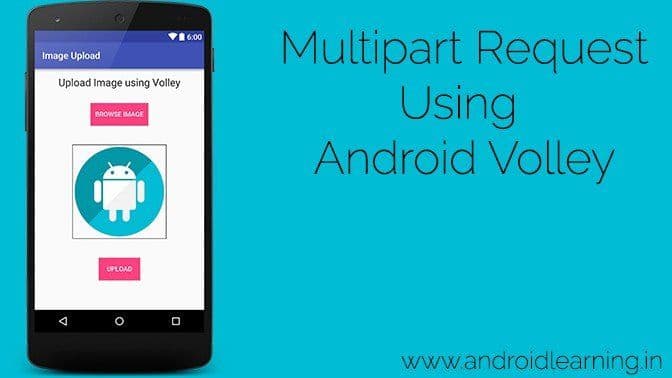
Http Multipart requests are used to send heavy data data or files like audio and video to the server. Android Volley gives you a very faster and optimized environment to send heavy data or files to the server. Here I post a image file selected from the gallery.
How to capture image from camera?

Creating Server Side Scripts
The first thing we need is to create our server side web services. For server side I am using PHP and MySQL. And for this I am using Wamp server. You can still use xampp or any other application. Now follow the steps to create your web service to handle the file upload.- Go to your server’s root directory (c:/wamp/www) and create a new folder. I created AndroidUploadImage.
- Inside the folder create a folder named uploads, in this folder we will save all the uploaded images.
- Create a file named upload.php and write the following code.
<?php
    // Path to move uploaded files
    $target_path = dirname(__FILE__).'/uploads/';
    if (isset($_FILES['image']['name'])) {
        $target_path = $target_path . basename($_FILES['image']['name']);
        try {
            // Throws exception incase file is not being moved
            if (!move_uploaded_file($_FILES['image']['tmp_name'], $target_path)) {
                // make error flag true
                echo json_encode(array('status'=>'fail', 'message'=>'could not move file'));
            }
            // File successfully uploaded
            echo json_encode(array('status'=>'success', 'message'=>'File Uploaded'));
        } catch (Exception $e) {
            // Exception occurred. Make error flag true
            echo json_encode(array('status'=>'fail', 'message'=>$e->getMessage()));
        }
    } else {
        // File parameter is missing
        echo json_encode(array('status'=>'fail', 'message'=>'Not received any file'));
    }
?>
Creating an Android Project
- Open Android Studio and create a new project (I created ImageUpload) How to create an android project ?
- Now add VolleyPlus to your project. You can quickly add it using gradle. Extract Gradle Scripts and open build.gradle (Module: app)
- Now inside dependencies block add the following line
compile 'dev.dworks.libs:volleyplus:+' - So your dependencies block will look like
dependencies { compile fileTree(dir: 'libs', include: ['*.jar']) compile 'com.android.support:appcompat-v7:24.0.0' compile 'dev.dworks.libs:volleyplus:+' } - Now click on Sync Project With Gradle Icon from the top menu
- And it will automatically download and add volley library to your project.
- Now we need to create the following layout.

- For creating the above layout you can use the following xml code
<?xml version="1.0" encoding="utf-8"?> <LinearLayout xmlns:android="http://schemas.android.com/apk/res/android" xmlns:tools="http://schemas.android.com/tools" android:layout_width="match_parent" android:layout_height="match_parent" android:padding="16dp" tools:context="org.snowcorp.imageupload.MainActivity" android:orientation="vertical"> <TextView android:layout_width="wrap_content" android:layout_height="wrap_content" android:textAppearance="?android:attr/textAppearanceLarge" android:text="Upload Image using Volley" android:id="@+id/textView" android:layout_gravity="center_horizontal" android:layout_marginBottom="10dp"/> <Button android:id="@+id/button_choose" android:layout_width="wrap_content" android:layout_height="wrap_content" android:background="@color/colorAccent" android:text="Browse Image" android:textColor="#fff" android:layout_gravity="center_horizontal" android:layout_margin="20dp" android:padding="10dp"/> <ImageView android:id="@+id/imageView" android:layout_width="200dp" android:layout_height="200dp" android:background="@drawable/border" android:layout_gravity="center_horizontal" android:padding="5dp" android:layout_margin="20dp"/> <Button android:id="@+id/button_upload" android:layout_width="wrap_content" android:layout_height="wrap_content" android:background="@color/colorAccent" android:text="upload" android:textColor="#fff" android:layout_gravity="center_horizontal" android:layout_margin="20dp"/> </LinearLayout> - Now lets come to MainActivity.java
public class MainActivity extends AppCompatActivity { private ImageView imageView; private Button btnChoose, btnUpload; public static String BASE_URL = "http://192.168.1.100/AndroidUploadImage/upload.php"; static final int PICK_IMAGE_REQUEST = 1; String filePath; - Now implement OnClickListener interface to our buttons.
btnChoose.setOnClickListener(new View.OnClickListener() { @Override public void onClick(View view) { imageBrowse(); } }); btnUpload.setOnClickListener(new View.OnClickListener() { @Override public void onClick(View view) { if (filePath != null) { imageUpload(filePath); } else { Toast.makeText(getApplicationContext(), "Image not selected!", Toast.LENGTH_LONG).show(); } } }); - Now we will create a method to choose image from gallery. Create the following method.
private void imageBrowse() { Intent galleryIntent = new Intent(Intent.ACTION_PICK, android.provider.MediaStore.Images.Media.EXTERNAL_CONTENT_URI); // Start the Intent startActivityForResult(galleryIntent, PICK_IMAGE_REQUEST); } - To complete the image choosing process we need to override the following method.
More information about Android Images, read chapter Amazing Facts of Android ImageView.public void onActivityResult(int requestCode, int resultCode, Intent data) { super.onActivityResult(requestCode, resultCode, data); if (resultCode == RESULT_OK) { if(requestCode == PICK_IMAGE_REQUEST){ Uri picUri = data.getData(); filePath = getPath(picUri); imageView.setImageURI(picUri); } } } // Get Path of selected image private String getPath(Uri contentUri) { String[] proj = { MediaStore.Images.Media.DATA }; CursorLoader loader = new CursorLoader(getApplicationContext(), contentUri, proj, null, null, null); Cursor cursor = loader.loadInBackground(); int column_index = cursor.getColumnIndexOrThrow(MediaStore.Images.Media.DATA); cursor.moveToFirst(); String result = cursor.getString(column_index); cursor.close(); return result; } - Now run your application and if you can choose image from gallery then you can move ahead. In below snapshot you can see mine app is working.

- Now we need to create one more method that will upload the image to our server. Create the following method in MainActivity class.
private void imageUpload(final String imagePath) { SimpleMultiPartRequest smr = new SimpleMultiPartRequest(Request.Method.POST, BASE_URL, new Response.Listener<String>() { @Override public void onResponse(String response) { Log.d("Response", response); try { JSONObject jObj = new JSONObject(response); String message = jObj.getString("message"); Toast.makeText(getApplicationContext(), message, Toast.LENGTH_LONG).show(); } catch (JSONException e) { // JSON error e.printStackTrace(); Toast.makeText(getApplicationContext(), "Json error: " + e.getMessage(), Toast.LENGTH_LONG).show(); } } }, new Response.ErrorListener() { @Override public void onErrorResponse(VolleyError error) { Toast.makeText(getApplicationContext(), error.getMessage(), Toast.LENGTH_LONG).show(); } }); smr.addFile("image", imagePath); MyApplication.getInstance().addToRequestQueue(smr); } - So the final complete code for our MainActivity.java file would be like
public class MainActivity extends AppCompatActivity { private ImageView imageView; private Button btnChoose, btnUpload; public static String BASE_URL = "http://192.168.1.100/AndroidUploadImage/upload.php"; static final int PICK_IMAGE_REQUEST = 1; String filePath; @Override protected void onCreate(Bundle savedInstanceState) { super.onCreate(savedInstanceState); setContentView(R.layout.activity_main); imageView = (ImageView) findViewById(R.id.imageView); btnChoose = (Button) findViewById(R.id.button_choose); btnUpload = (Button) findViewById(R.id.button_upload); btnChoose.setOnClickListener(new View.OnClickListener() { @Override public void onClick(View view) { imageBrowse(); } }); btnUpload.setOnClickListener(new View.OnClickListener() { @Override public void onClick(View view) { if (filePath != null) { imageUpload(filePath); } else { Toast.makeText(getApplicationContext(), "Image not selected!", Toast.LENGTH_LONG).show(); } } }); } private void imageBrowse() { Intent galleryIntent = new Intent(Intent.ACTION_PICK, android.provider.MediaStore.Images.Media.EXTERNAL_CONTENT_URI); // Start the Intent startActivityForResult(galleryIntent, PICK_IMAGE_REQUEST); } public void onActivityResult(int requestCode, int resultCode, Intent data) { super.onActivityResult(requestCode, resultCode, data); if (resultCode == RESULT_OK) { if(requestCode == PICK_IMAGE_REQUEST){ Uri picUri = data.getData(); Log.d("picUri", picUri.toString()); Log.d("filePath", filePath); imageView.setImageURI(picUri); } } } private void imageUpload(final String imagePath) { SimpleMultiPartRequest smr = new SimpleMultiPartRequest(Request.Method.POST, BASE_URL, new Response.Listener<String>() { @Override public void onResponse(String response) { Log.d("Response", response); try { JSONObject jObj = new JSONObject(response); String message = jObj.getString("message"); Toast.makeText(getApplicationContext(), message, Toast.LENGTH_LONG).show(); } catch (JSONException e) { // JSON error e.printStackTrace(); Toast.makeText(getApplicationContext(), "Json error: " + e.getMessage(), Toast.LENGTH_LONG).show(); } } }, new Response.ErrorListener() { @Override public void onErrorResponse(VolleyError error) { Toast.makeText(getApplicationContext(), error.getMessage(), Toast.LENGTH_LONG).show(); } }); smr.addFile("image", imagePath); MyApplication.getInstance().addToRequestQueue(smr); } // Get Path of selected image private String getPath(Uri contentUri) { String[] proj = { MediaStore.Images.Media.DATA }; CursorLoader loader = new CursorLoader(getApplicationContext(), contentUri, proj, null, null, null); Cursor cursor = loader.loadInBackground(); int column_index = cursor.getColumnIndexOrThrow(MediaStore.Images.Media.DATA); cursor.moveToFirst(); String result = cursor.getString(column_index); cursor.close(); return result; } } - Now at last add below permission to your application.
<uses-permission android:name="android.permission.INTERNET" /> <uses-permission android:name="android.permission.ACCESS_NETWORK_STATE" /> <uses-permission android:name="android.permission.WRITE_EXTERNAL_STORAGE" /> <uses-permission android:name="android.permission.READ_EXTERNAL_STORAGE" /> - Finally run your app.
- You can also download my source code from below.